
Windows 11 26H2 is officially here. Microsoft announced general availability of the Windows 11 2026 Update on September 29, 2026. The important part is not a giant redesign or a traditional full-OS replacement: for eligible Windows 11 24H2 and 25H2 PCs, 26H2 is delivered mainly as a lightweight enablement package that turns on features already staged through monthly updates.
That makes 26H2 unusual in a good way. The installation can be fast, the codebase stays aligned with recent Windows 11 releases, and many of the visible changes may already look familiar if your PC has been receiving Microsoft’s gradual feature rollouts. This guide separates what actually changes with 26H2 from the broader feature set it consolidates, then covers the launch-day changelog, bug fixes, known issues, screenshots, videos, support lifecycle, and installation steps.
The short version: Windows 11 26H2 is a small feature-update switch sitting on top of a year’s worth of Windows improvements.
Windows 11 26H2 at a glance
| Marketing name | Windows 11 2026 Update |
| Version | 26H2 |
| General availability | September 29, 2026 |
| Servicing model | Enablement package for eligible 24H2/25H2 systems on the shared servicing branch |
| Build family | 26300.x for 26H2; monthly cumulative updates continue to change the revision |
| Rollout | Controlled/phased rollout with safeguard holds where Microsoft detects compatibility risk |
| Support | 24 months for Home/Pro; 36 months for Enterprise/Education |
| Upgrade restart | Typically one restart for the enablement package |
One naming note: Windows 11 26H1 is a separate release used on select newer hardware and a different Windows core. It was not the normal in-place upgrade path for existing 24H2/25H2 PCs. The mainstream annual update for those systems is 26H2.
What is actually new when you move to 26H2?
Because 24H2, 25H2, and 26H2 share a servicing branch, the feature update itself is mostly an activation and lifecycle milestone. Microsoft specifically calls out three experiences that become enabled by default for commercial devices where they were previously governed by temporary commercial controls:
- Windows settings backup becomes a baseline on eligible commercial devices, preserving supported Windows settings and Microsoft Store app lists. Existing administrator policy still wins, and restore remains separately controlled.
- App-specific taskbar actions are enabled by default for commercial users, surfacing common actions directly from taskbar experiences.
- File Explorer improvements that were previously held behind commercial controls are enabled by default, especially around navigation and usability.
For consumers, much of the value is cumulative: 26H2 rolls forward the features Microsoft has been shipping through monthly servicing since 25H2. Feature availability can still depend on hardware, account type, market, Copilot+ PC eligibility, and Controlled Feature Rollout timing.
Windows 11 26H2 features: the complete launch-day feature set
Security and sign-in
- Administrator protection: optional just-in-time admin elevation with profile separation to reduce the risk of always-available administrator rights. It is off by default and can be managed through Intune or Group Policy.
- Built-in Sysmon: Microsoft’s System Monitor can now be enabled directly in Windows to capture security-relevant events into Windows Event Log using custom filtering rules.
- Smart App Control can be toggled: supported systems can turn SAC on or off without requiring a clean Windows installation.
- Third-party passkey credential managers: Windows supports compatible credential-manager plugins so existing passkeys can be used or new passkeys can be saved through an integrated provider.
- Security-key PIN setup: Windows can prompt for and configure a PIN for supported hardware security keys during authentication when required.
- Enhanced Sign-in Security for external fingerprint readers: compatible peripheral fingerprint sensors can use Windows Hello ESS, extending the protection beyond built-in laptop sensors.
- Stricter driver trust: Windows removes default trust for cross-signed third-party drivers, while WHCP drivers and explicitly trusted legacy drivers remain allowed. Microsoft uses compatibility auditing before enforcement.
- Post-quantum cryptography: Windows exposes NIST-standard ML-KEM and ML-DSA capabilities through CNG and .NET, including standalone ML-KEM for TLS key exchange.
For a practical security baseline after upgrading, LogicWeb’s Windows 11 hardening guide covers Defender, Firewall, SmartScreen, ransomware protection, encryption, backups, and useful free tools. Note: 26H2 changes the older Smart App Control limitation described in that September guide by allowing SAC to be switched on or off without a clean installation on supported systems.
Deployment, management, backup, and recovery
- Windows Autopilot device association: organizations can identify trusted devices before enrollment, apply device-targeted policy, automate corporate enrollment, and customize OOBE setup.
- First-sign-in restore expands: Windows settings backup and restore supports Microsoft Entra hybrid-joined devices, Cloud PCs, and multi-user environments. Enterprise State Roaming management is also moving under these backup policies.
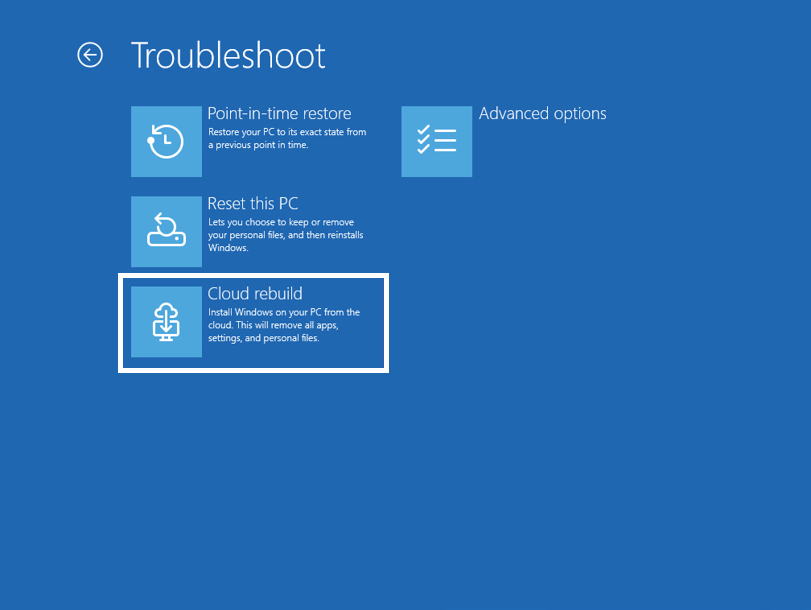
- Point-in-time restore: Windows can roll a system—including apps, settings, and personal files—back to a recent automatic restore point.
- Quick machine recovery improvements: Windows can perform a one-time remediation scan when QMR and automatic solution checks are enabled; enterprise/domain-managed devices remain policy-controlled.
- Policy-based removal of preinstalled apps: admins can specify additional MSIX/APPX package family names for removal through Group Policy.
- Recovery remote management: the September launch baseline adds a WinRE plug-in that gives MDM providers more recovery-management options.
File Explorer
- AI actions: supported files can expose image-editing actions and document summaries. Microsoft 365 Copilot users can summarize supported OneDrive and SharePoint files without opening them.
- Hover quick actions: work/school users can see actions such as Open file location and Ask Copilot from File Explorer Home.
- More archive formats: Explorer adds support for formats including
uu,cpio,xar, and NuGet packages (nupkg). - Folder preferences persist: View and Sort choices are retained more reliably when apps open folders such as Downloads or Documents directly.
- Voice typing while renaming: Windows voice typing can be used during file rename operations.
- Faster Home: File Explorer Home launch and responsiveness are improved.
Windows Search
- Search can preview results before you open them.
- Installed-app search better handles typos and partial app names.
- Results identify whether an item comes from an app, setting, file, web source, or Microsoft Store suggestion.
- Windows can automatically index frequently used folders to improve future local-file results; the control lives under Settings > Privacy & security > Search.
- On supported Copilot+ PCs, semantic indexing and natural-language search can surface documents, images, and settings without requiring exact names.

Start menu and taskbar
- Redesigned Start: a scrollable All section, grid/category app views, and a responsive layout that adapts to the display.
- Start layout controls: users can choose a Start size and independently show or hide Pinned, Recent, and All sections.
- Movable taskbar: the taskbar can be placed at the bottom, top, left, or right of the screen.
- Smaller taskbar: a compact option reduces taskbar height and icon size to reclaim workspace.
- AI-agent progress on the taskbar: supported agent experiences can surface progress and completion notifications. Microsoft cites Researcher in Copilot as an early supported experience.
Camera, Bluetooth, USB, power, and update behavior
- Multi-App Camera: supported systems can allow more than one application to access a camera stream at the same time.
- Basic Camera mode: a simplified mode can help with troubleshooting and stability; both camera modes can be managed by policy.
- Bluetooth quality: Microsoft has improved LE Audio, voice-call behavior, microphone mute synchronization, reconnection after hibernation, connection-state reporting, and accessory compatibility.
- USB4 reliability: displays connected through USB4 docks and hubs receive additional resume/standby reliability work.
- Fewer update restarts: Windows Update can bundle eligible updates with the monthly security update where possible.
- Sleep behavior after updates: if you manually put the PC to sleep, Windows aims to return the machine to sleep after the update completes, even when automatic sleep is otherwise set to Never.
Accessibility
- Magnifier: clearer screen-reader announcements, exact zoom-percentage entry, adjustable zoom increments, and a full-screen color tint for lower-glare viewing.
- Narrator: Braille Viewer shows on-screen text and its Braille equivalent, while Microsoft also improves Word navigation and gives users more control over which control details are announced and in what order.
- Voice access: natural-language commands on supported Copilot+ PCs, more flexible phrasing, and added French, German, Spanish, and Korean support.
- Voice Isolation: better suppression of other speakers and background noise to improve recognition.
Task Manager and IT administration
- NPU visibility: optional NPU, NPU Engine, dedicated-memory, and shared-memory columns make AI workload activity easier to inspect. GPU-integrated neural engines also appear in Performance views.
- Isolation column: an optional column identifies processes running inside an AppContainer.
- Safer batch/script processing: admins can enable a more secure mode that prevents batch files and Command Prompt scripts from being modified while they execute.
Feature removed in 26H2: WMIC
Windows Management Instrumentation Command-line (WMIC) is removed from Windows 11 24H2 and later and is no longer available as a Feature on Demand. Scripts that still call wmic.exe should move to PowerShell/CIM alternatives.
Launch-day cumulative changelog: KB5124010
The 26H2 launch sits on the same servicing stream as 24H2 and 25H2. Microsoft’s September 22, 2026 preview cumulative update, KB5124010, applies to all three versions and carries the launch-period feature polish and fixes. If you already installed earlier updates, Windows only downloads the delta it still needs.
File Explorer, emoji, Widgets, personalization, Bluetooth, accessibility, and Settings changes
- File Explorer: downloaded HTML files get a Preview anyway button after the security warning; non-HTML files such as PDFs can preview automatically. Home remembers whether sections were expanded or collapsed. Cloud-file thumbnails in the Details pane are more reliable, file properties are reorganized, and an address-bar edit bug that could clear the path is fixed.
- Emoji: Unicode Emoji 17.0 support arrives, along with design refinements to several existing emoji.
- Widgets: a new Tips widget can be added to the Widgets board and lock screen.
- Personalization: Microsoft improves the Background settings page, adds DIB-image wallpaper support, sharpens previews, improves portrait-monitor previews, handles rapid wallpaper changes more reliably, and makes slideshow wallpapers work more consistently across multiple desktops.
- Bluetooth: volume changes made from Classic Audio accessories can show the Windows volume flyout; accessory connection-state reporting, Settings stability, microphone compatibility, LE Audio performance, shared audio reliability, and radio-toggle accuracy are improved. A Bluetooth streaming crash with error
0x139is addressed. - Accessibility: a new Open apps maximized option lives under Settings > Accessibility > Visual effects. Bluetooth Quick Settings navigation improves for keyboard, gamepad, and Narrator users.
- Magnifier: Microsoft refreshes toolbar icons, spacing, and padding without changing core zoom, keyboard shortcut, or Read Aloud behavior.
- Settings: reliability improves in Printers & Scanners; packaged-app version numbers are easier to see; time pickers better honor 12/24-hour preferences; and the multi-app camera toggle persists more reliably.
Touchpad, Copilot key, camera roll, fonts, recovery, kiosk, backup, and power changes
- Touchpad: precision touchpads gain single-finger edge scrolling and automatic edge scrolling. Earlier July changes also added scroll/zoom speed and acceleration controls.
- Copilot key: Windows adds an option to remap the key to Right Ctrl or the Context Menu key.
- Camera roll backup: eligible users can configure OneDrive camera-roll protection from Settings and complete setup on a phone using a QR code.
- Fonts: the Ebrima font adds Garay and Beria Erfe script support and refines Adlam glyphs.
- Windows Recovery: WinRE gains a remote-management extension point for MDM providers.
- Kiosk mode:
Windows + Tabis disabled in restricted UX kiosks;Windows + AandWindows + Care disabled in single-app kiosk mode. - Windows Backup: the phased PC-to-PC Migration feature is removed. Microsoft directs users back to Windows Backup for supported files, settings, and migration scenarios.
- Power and battery: Microsoft fixes scenarios where a plugged-in laptop incorrectly detects a switch from AC power to battery.
Bug fixes and servicing components
- Camera: fixes an issue where a built-in camera could stop working in Camera and other applications.
- File History: fixes backup/restore failures to external drives or network locations and the false Reconnect your drive warning.
- Sysmon: fixes malformed/truncated executable-header handling that could cause unpredictable memory use and unreliable tamper detection.
- Sysmon: fixes a file-system filter issue where a failed archive-directory open could lead to a stop error when Windows closed an uninitialized handle.
- Sysmon: fixes false Event ID 25 tampering alerts for
smss.exe. - AI components on Copilot+ PCs: Image Search, Content Extraction, Semantic Analysis, and Settings Model move to version
1.2608.951.0. - Servicing stack: KB5124009 improves Windows Update installation reliability.
Known issues at launch
Microsoft’s 26H2 feature-update history page says the company is not currently aware of any issue specific to the 26H2 enablement package itself at launch. That is not the same as saying every September cumulative update is issue-free. The shared servicing baseline has two important known issues documented with KB5124010:
- Domain trust failures in some environments: after the September 8 security update or later, certain Credential Guard-protected machine accounts can lose their secure channel with an on-premises Active Directory domain when Machine Identity Isolation enforcement was previously configured in an unsupported domain-functional-level environment. Cached offline sign-in may still work. Microsoft documents policy/registry mitigation steps and says a future update will change enforcement behavior while the feature is improved.
- USB Audio Class 1.0 problems: some devices can show Device Manager Code 10, produce no sound, leave volume stuck at zero, or make Sound settings unresponsive after the September security update. Microsoft says it is working on a fix.
For business deployments, that distinction matters: 26H2 itself can be a lightweight switch, but the cumulative updates underneath it still deserve the same pilot-ring and compatibility testing you would apply to any Windows servicing release.
How to install Windows 11 26H2
- Open Settings > Windows Update.
- Turn on Get the latest updates as soon as they’re available if you want to be near the front of the phased rollout.
- Select Check for updates.
- When Windows 11, version 26H2 appears, select Download & install.
- Restart when prompted.
Microsoft’s enablement-package article lists Windows 11 24H2 or 25H2 as the supported starting point and identifies the September 22, 2026 cumulative preview update KB5124010—or a later cumulative update—as a prerequisite for the enablement package path. Windows Update normally handles prerequisites for you.
Organizations can deploy through their existing Windows management stack, including Windows Autopatch, Microsoft 365 admin tooling, Windows Update for Business, WSUS, and the Microsoft Update Catalog. Microsoft recommends targeted validation before broad enterprise deployment.
How to confirm you are on 26H2
- Press
Windows + R, typewinver, and check the version/build. - Or open Settings > System > About and look under Windows specifications.
Get-ComputerInfo | Select-Object WindowsProductName, WindowsVersion, OsBuildNumberVideos: Windows 11 26H2 and the September feature rollout
The first video is the Windows release-notes companion for September 2026. The second is an independent 26H2 overview that is useful for seeing the enablement-package concept and version changes in action. Use Microsoft’s documentation above as the source of record for rollout and support details.
Should you install Windows 11 26H2 now?
For a typical supported home PC already running 24H2 or 25H2, 26H2 is designed to be a low-disruption update and it resets the support clock. If your machine is offered the update normally through Windows Update, that is the cleanest path.
For managed fleets, the best rollout strategy is more conservative: validate line-of-business apps, VPN/security software, peripherals, authentication, and recovery workflows in a pilot ring first. In particular, review the current notes if you depend on on-premises Active Directory with Credential Guard/Machine Identity Isolation or older USB Audio Class 1.0 hardware.
Bottom line
Windows 11 26H2 is less about one dramatic launch-day feature and more about consolidating a year of Windows changes into the new supported annual release. The headline improvements are better taskbar and Start customization, faster and more capable File Explorer/Search, stronger security primitives, richer accessibility features, more resilient recovery and backup, improved device management, and a long list of reliability fixes. The enablement-package delivery model is the other big story: on eligible 24H2/25H2 systems, moving to 26H2 can be much closer to installing a monthly update than reinstalling Windows.
Official Microsoft sources
- How to get the Windows 11 2026 Update — Microsoft Windows Experience Blog
- Windows 11, version 26H2 update history — Microsoft Support
- What’s new in Windows 11, version 26H2 — Microsoft Learn
- KB5121794: 26H2 enablement package — Microsoft Support
- KB5124010: September 22, 2026 preview cumulative update — Microsoft Support
- Windows 11 release information — Microsoft Learn
- Inside this update — Microsoft Support
Article last verified against Microsoft’s release documentation on September 29, 2026. Windows features and known issues can change through monthly servicing, phased rollout, or safeguard holds.
Reader discussion
Join the conversation.
Questions, corrections, and useful context are welcome.