
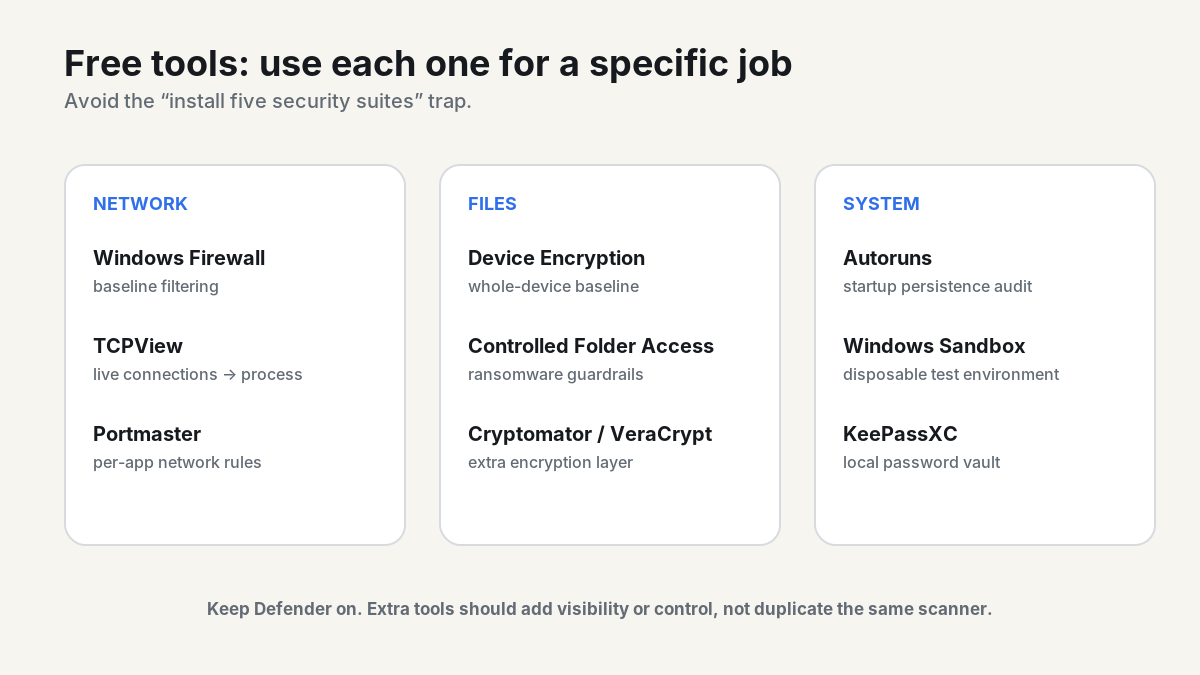
You do not need a pile of paid security suites to harden Windows 11. Microsoft already ships a capable baseline: Defender Antivirus, Windows Firewall, reputation-based protection, device security controls and ransomware protections. The useful third-party additions are the ones that solve a specific gap—network visibility, file encryption or password management—not another tray icon doing the same scan.
1. Update Windows, Defender and the software that runs at startup
Install current Windows security updates first, then update Microsoft Defender signatures and the browsers, PDF readers, chat apps and other software that handles untrusted content. Remove software you no longer use, especially abandoned utilities and old remote-access tools.
This is unglamorous because it works: an exploit against software you removed cannot become persistent later.
2. Keep Microsoft Defender active
Open Windows Security → Virus & threat protection and confirm that real-time protection, cloud-delivered protection and tamper protection are enabled. Run a full scan if the PC’s history is unknown; use Microsoft Defender Offline when you have a specific reason to suspect persistent malware.
Avoid stacking multiple real-time antivirus products. More scanners do not automatically mean more security; they can add conflicts and false positives. Add specialist tools for visibility and control while leaving Defender as the baseline antivirus.
3. Turn on reputation-based protection—and understand Smart App Control
Under Windows Security → App & browser control, review reputation-based protection and Microsoft Defender SmartScreen. Potentially unwanted app blocking is worth keeping on unless you have a tested compatibility reason not to.
Smart App Control can block malicious or untrusted applications, but there is an important catch: Microsoft says it is available only on new Windows 11 installations. A PC that received the feature through an upgrade generally cannot switch it on without a reset or reinstall. Do not reset a working PC just to check a security-box; use the controls that are available on your installation.
4. Treat the Windows Firewall as a default-deny boundary, not an annoyance
Go to Windows Security → Firewall & network protection and keep the firewall on for Domain, Private and Public profiles. Make sure coffee-shop, hotel and airport Wi-Fi is classified as Public unless you have a clear reason to expose local sharing.
When an application needs inbound access, allow the specific application rather than opening a broad port whenever possible. If you do create a port rule, document why it exists and remove it when the service goes away.
5. See what is talking to the network
TCPView: quick connection-to-process mapping
Microsoft Sysinternals TCPView shows live TCP and UDP endpoints and the processes that own them. It is a fast way to answer “what process is connecting to that address?” without living in netstat.
Look for unexpected listeners, processes with strange paths and software making outbound connections when it should be idle. A connection you do not recognize is a reason to investigate, not proof of compromise.
Portmaster: optional per-app network policy
Portmaster is a free, open-source application firewall for Windows that monitors connections and can apply per-application blocking rules. It is useful when you want more outbound visibility than the default Windows Firewall UI exposes.
Use it as a network-control layer, not as a replacement for Microsoft Defender. Start with observation before aggressively blocking traffic; modern apps have enough background dependencies that a deny-everything session can become a troubleshooting project.
6. Protect files from both theft and ransomware
Turn on device encryption where Windows supports it
Search Settings for Device encryption. Microsoft says this feature is available on a wider range of systems, including qualifying Windows Home devices. Traditional BitLocker Drive Encryption management is limited to Pro, Enterprise and Education editions.
Whichever edition you use, back up the recovery key somewhere you can reach if the PC will not boot. Encryption without a recoverable key can turn a hardware failure into data loss.
Use Controlled Folder Access for important data
Windows Security’s Controlled folder access restricts untrusted applications from changing protected folders and is designed to reduce ransomware damage. Windows protects common folders such as Documents, Pictures, Videos, Music and Desktop by default when the feature is enabled, and you can add others.
Expect some legitimate software to be blocked. Add an allow rule only after verifying the exact executable path and publisher; do not make “allow everything until the warning disappears” your configuration strategy.
Encrypt sensitive folders before they reach the cloud
Cryptomator is free on Windows desktop and creates encrypted vaults designed to live inside cloud-synced folders. It is a good extra layer for sensitive documents stored in OneDrive, Dropbox, Google Drive or Nextcloud.
VeraCrypt is better suited to encrypted containers, partitions and removable drives. The distinction matters: Cryptomator is convenient for file-by-file cloud sync; VeraCrypt is a stronger fit when you want an encrypted volume you explicitly mount.
7. Harden sign-in and passwords
Use Windows Hello with a strong PIN or biometric option supported by your hardware, and use passkeys for websites that offer them. For accounts that still require passwords, a dedicated password manager is far better than reusing memorable variations.
KeePassXC is free and open source and keeps its encrypted database locally. If you sync that database between devices, secure the sync account too, and keep an independent backup of the database.
8. Audit persistence with Autoruns
Sysinternals Autoruns exposes far more autostart locations than Task Manager’s Startup tab. It is valuable for investigating strange logon behavior, browser helpers, scheduled tasks and other persistence points.
Do not delete entries just because the name is unfamiliar. Disable one suspect item, research its path and signature, reboot, and verify the result. Security tooling is safest when it improves evidence, not when it encourages random deletion.
9. Use Windows Sandbox for disposable testing—if your edition supports it
Windows Sandbox is included with supported Pro, Enterprise and Education editions, but not Windows Home. It creates a disposable Windows environment that is thrown away when you close it.
One important detail: networking is enabled by default. If you are opening a genuinely untrusted file and it does not need internet access, use a Sandbox configuration that disables networking. Isolation is more useful when you do not hand an unknown executable a route to your LAN.
10. Build backups that ransomware cannot edit from the PC
Sync is not backup. If ransomware encrypts a synchronized folder, the encrypted versions may sync perfectly. Keep versioned backups and at least one copy that the everyday Windows account cannot continuously write to—an offline external disk, a protected NAS snapshot, or a properly isolated off-site backup.
Then test a restore. A backup job with no restore test is a theory.
A sensible free Windows 11 security stack
| Need | Free option | Use it for |
|---|---|---|
| Antivirus | Microsoft Defender Antivirus | Real-time malware protection and scans |
| Firewall | Windows Firewall | Inbound/outbound policy baseline |
| Reputation controls | SmartScreen / reputation-based protection | Malicious sites, downloads and unwanted apps |
| Ransomware guardrail | Controlled Folder Access | Limit unauthorized file changes |
| Network visibility | TCPView | Map connections to processes |
| Per-app network rules | Portmaster | Inspect and restrict application traffic |
| Cloud-file encryption | Cryptomator | Encrypted vaults inside sync folders |
| Volume encryption | Device Encryption / BitLocker / VeraCrypt | Protect data at rest |
| Startup audit | Autoruns | Review persistence locations |
| Password vault | KeePassXC | Unique credentials in an encrypted local database |
Five Windows “security tweaks” to avoid
- Disabling Defender because another utility “optimizes” Windows.
- Turning off UAC or the firewall to make an old application stop complaining.
- Running unsigned “debloat” scripts from a random post without reading what they change.
- Opening inbound ports to the internet when a VPN or authenticated relay would solve the access problem.
- Assuming cloud sync is a backup because files exist on two devices.
FAQ
Is Microsoft Defender enough for Windows 11?
For many home and small-business systems, Defender plus Windows Firewall, SmartScreen, timely updates and reliable backups form a strong baseline. Additional free tools are most valuable for specialized visibility, encryption or policy—not because Windows needs several real-time antivirus engines.
What is the best free firewall for Windows 11?
Start with the built-in Windows Firewall. If you want easier per-application outbound visibility and blocking, Portmaster is a free open-source option. Do not disable the built-in firewall unless you understand how the replacement integrates with Windows networking.
How do I protect Windows files from ransomware?
Keep Defender active, enable Controlled Folder Access for valuable folders, use least-privilege accounts, and maintain versioned backups that malware on the PC cannot rewrite. Encryption protects confidentiality; backups protect recoverability.
Sources
- Microsoft: Windows Security
- Microsoft: Virus & threat protection / Controlled Folder Access
- Microsoft: App & browser control / Smart App Control
- Microsoft: Firewall & network protection
- Microsoft: Device Encryption
- Microsoft: Windows Sandbox
- Microsoft Sysinternals: TCPView
- Microsoft Sysinternals: Autoruns
- Portmaster
- Cryptomator
- VeraCrypt
- KeePassXC
Reader discussion
Join the conversation.
Questions, corrections, and useful context are welcome.