
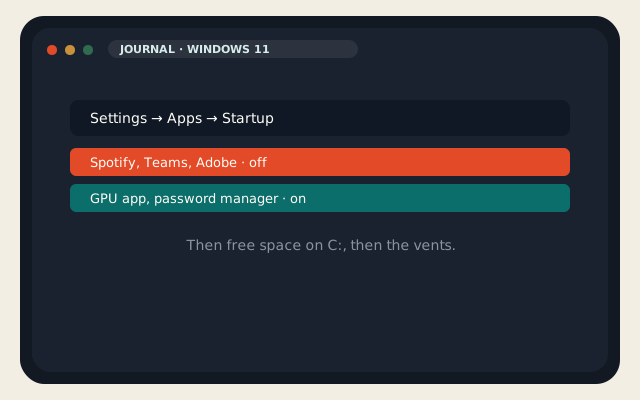
A slow Windows 11 laptop is almost never a mysterious registry. It is fourteen programs launching at login, a C: drive at 92 percent, a power plan that is saving a battery you are sitting next to a charger, or a machine that is thermally glued shut. I am writing this on 1 September 2026. Windows 11 25H2 is the current branch — it started rolling in late 2025 and is the one you should be on unless IT froze you. The steps below are the ones that still move the needle. “PC booster” installers still do not.
This is not a host article that pretends a VPS will fix your fan. A VPS is for always-on jobs. Your laptop is for the session in front of you. Speed up Windows 11 by removing work, not by adding a suite that adds more work.
On this page
Startup apps, power, and Task Manager
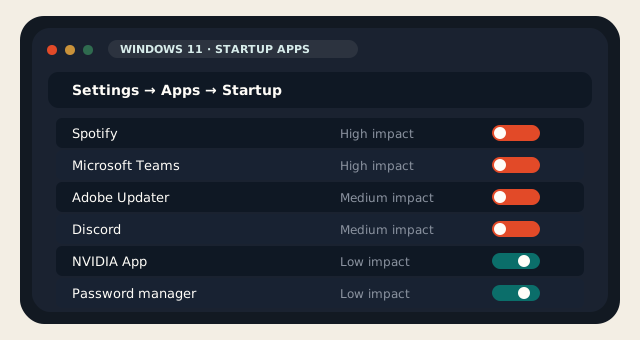
Open Settings → Apps → Startup. Every row is a program that asked to launch when you sign in. Switch off anything you can open yourself: Spotify, Steam, Discord, Adobe updaters, Epic, Xbox Game Bar if you are not playing, Teams if this is a personal laptop, “helper” apps for printers you unplugged in 2022. Leave the GPU companion if you game (NVIDIA app, AMD Software). Leave your password manager. Leave OneDrive only if you actually use it as the desktop. That single list is the highest-yield Windows 11 change most people will ever make.
Task Manager (Ctrl+Shift+Esc) has a Startup apps tab with a “Startup impact” column. High impact plus a name you do not recognize is the row to disable. The Processes tab will also show the login pile. Efficiency mode (right-click a process) is a bandage for a runaway browser, not a strategy. If Chrome is 6 GB, close the tabs. Windows 11 will not invent RAM.
Power, because laptops lie
Settings → System → Power & battery. On battery, Balanced or Better battery is correct. Plugged in, Better performance is the adult default for a work session. Best performance exists, drains the pack, and spins fans; use it when you are rendering or compiling, not for mail. A Windows 11 laptop that feels “fine at the office and dead on the couch” is often this toggle, not a dying SSD.
Also look at Battery saver. If it kicked in at 20 percent and you never turned it off, the CPU is parked on purpose. That is not a bug. Charge, then set a threshold you can live with. OEM apps (Lenovo Vantage, Dell Power Manager, MyASUS) often hide a charging limiter at 80 percent — good for battery life, irrelevant to snappiness while plugged in.
Measure before you chase folklore. Task Manager → Performance shows CPU, memory, disk, and GPU. If disk sits at 100 percent after login, it is startup or a full volume, not “Windows 11 is bloated.” If CPU sits at 20 percent idle with one named process, that process is the story — often a helper, a stale updater, or a browser playing a video in a background tab. The Resource Monitor behind the Performance tab’s Open Resource Monitor link will name the file. Five minutes here beats an hour of random Settings toggles.
| Place | What to do | What not to do |
|---|---|---|
| Settings → Apps → Startup | Disable everything you can launch by hand | Disable the GPU app or your password manager |
| Task Manager → Startup apps | Sort by impact, be ruthless | End-task Explorer.exe and call it a tweak |
| Power & battery | Better performance when plugged in | Best performance all day on a 40 Wh pack |
| Task Manager → Processes | Efficiency mode on a runaway tab | Kill processes named after Windows |
Disk, RAM, and the 80 percent rule
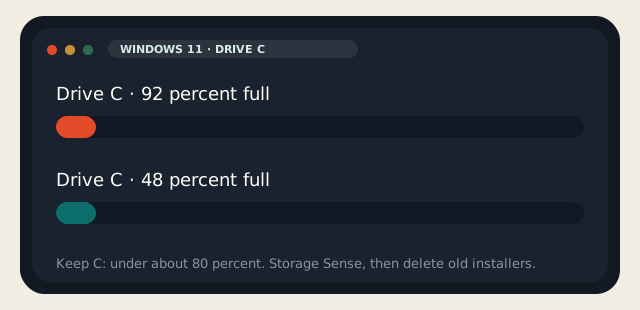
Windows 11 wants free space. Updates, virtual memory, Search, and Restore all write. When C: is over about 80 percent, the machine starts to feel possessed: Start menu lag, 100 percent disk in Task Manager, updates that fail mysteriously. Settings → System → Storage. Run Cleanup recommendations. Empty Recycle Bin. Delete the Windows Update leftovers it offers. Uninstall the three games you have not launched this year. Storage Sense can delete temporary files on a schedule; turn it on.
The Downloads folder is where Windows 11 laptops go to die. Installers for things you already installed. ISO files. Zoom installers from 2023. Move photos to another drive or to a host you control. A VPS with Immich is a different article; a 400 GB folder of raws on C: is this one. If the laptop is still an HDD in 2026, the performance fix is an SSD, not a setting. No registry named “make spinning rust fast” exists.
RAM: 8 GB is the bottleneck, not the theme
Windows 11 25H2 plus Chrome plus Teams plus a video call is more than 8 GB of RAM. The OS will swap. The SSD will light up. The laptop will feel broken. The fix is close tabs, use Edge instead of three Chromium copies, or buy 16 GB if the machine can take it. Visual effects (Settings → Accessibility → Visual effects, and sysdm.cpl → Advanced → Performance) can turn off transparency and animations. That helps a 2019 i5. It will not save an 8 GB machine running a 40-tab session.
SysMain (the service formerly called Superfetch) is usually left on for SSDs in 2026. Disabling it was a 2014 HDD ritual. Search indexer can be scoped (Indexing Options) if you have a huge messy profile; do not disable Windows Search unless you enjoy a dead Start menu. Prefetch is not your problem.
What to leave on, and what to ignore
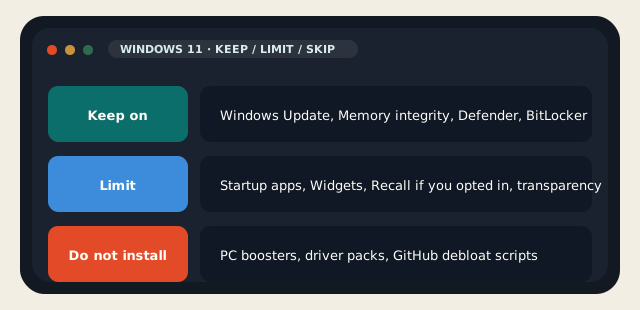
Memory integrity (Settings → Privacy & security → Windows Security → Device security → Core isolation) is on by default for a reason. It costs some gaming FPS. On a work Windows 11 laptop, leave it on. Turning it off for a 4 percent benchmark is how people turn a theft into a firmware story. BitLocker stays on. Defender stays on. Windows Update stays on. The September 2026 security rollup is not optional because a forum thread said updates made a game hitch.
Recall is a Copilot+ PC feature: local snapshots of what you did, opt-in, still controversial, still being reshaped after two years of backlash. If you never opted in, it is not why the fan is loud. If you did, and you do not use it, turn it off — you get disk back, not a new CPU. Copilot in the taskbar is mostly a button. Unpin it if it annoys you. It is not 30 percent of your RAM.
Copilot+ PCs are a different thermal and RAM envelope: extra NPUs, Recall as an opt-in, and a floor of 16 GB. If you bought one, do not copy 2018 “disable SysMain” threads onto it. If you did not, you cannot turn a regular Windows 11 laptop into a Copilot+ machine with a policy. 25H2 still helps ordinary hardware — Task Manager is snappier, some background services were trimmed — but it will not invent cores. Apply the startup and disk steps first; only then argue with Copilot.
- Widgets: Settings → Personalization → Taskbar. Off if you do not glance at them. They poll the network for headlines you will not read.
- Startup boost in Edge: fine. In Chrome, just do not run three profiles plus Edge plus Arc-in-maintenance plus Dia.
- Hardware-accelerated GPU scheduling: on, unless a specific GPU driver told you otherwise.
- Game Mode: on if you game, off if you do not. It is not a general Windows 11 accelerator.
Ignore: registry cleaners, “driver booster” packs, anything that wants to install a toolbar, and GitHub scripts that “debloat 25H2” by ripping out Defender, Update, and the store. Those scripts are written for a lab image, not for a laptop that holds your bank. If a YouTuber measured a 2 percent idle CPU win after deleting Photos, that is not your afternoon.
Hardware that actually helps, in order: an SSD if you are still on a platter; 16 GB RAM if you are on 8 and the board allows it; a fan clean if the laptop is three years old and has never been opened; a pad so the vents can breathe. Windows 11 cannot outrun a 95 °C throttle. Dust is a performance setting.
If the laptop is still slow after startup is clean, C: is half empty, and it is cool to the touch, the next honest step is the model year. A 2018 dual-core with 8 GB will not become a 2026 Copilot+ machine via settings. Use it for mail. Put always-on jobs on a VPS. Stop paying for software that promised to resurrect it. That is how you speed up Windows 11 when the honest answer is “this chassis is done.”
Reader discussion
Join the conversation.
Questions, corrections, and useful context are welcome.