In today’s digital landscape, where cyber threats evolve rapidly, securing your cPanel server is non-negotiable. cPanel & WHM powers millions of websites, but misconfigurations or outdated practices can expose your server to attacks like brute force, malware injection, or DDoS. This guide draws from the latest official cPanel documentation and expert recommendations as of late 2025, providing step-by-step instructions to harden your server. We’ll cover everything from basic updates to advanced protections, making it accessible for beginners while offering depth for experienced sysadmins. By following these practices, you can minimize risks and ensure compliance with modern security standards.
Whether you’re managing a single site or a shared hosting environment, start with a full server audit using WHM’s Security Advisor (WHM > Security Advisor). This tool scans for vulnerabilities and suggests fixes—run it quarterly.
1. Keep Your Software and OS Updated
Outdated software is the top entry point for attackers, with over 60 CVEs addressed in cPanel’s 2024-2025 updates alone. Regular patching prevents exploits like those in PHP or Apache.
Steps to Follow:
- Enable Automatic Updates: Log in to WHM as root. Navigate to WHM > Update Preferences. Select “Automatic (STABLE)” for cPanel updates and enable email notifications for critical patches.
- Update cPanel & WHM: Go to WHM > cPanel Version Information and click “Update Now” if available. For OS updates, use WHM > Software > EasyApache 4 (for PHP/Apache) or ELevate for full OS migrations (e.g., CentOS to AlmaLinux).
- Scan for Third-Party Plugins: In WHM > Plugins, verify and update any add-ons. Enable GPG signature verification in WHM > Tweak Settings > Verify signatures of 3rdparty cPaddons.
Pro Tip: Schedule weekly checks via cron jobs: crontab -e and add 0 2 * * 0 /scripts/upcp --cron.
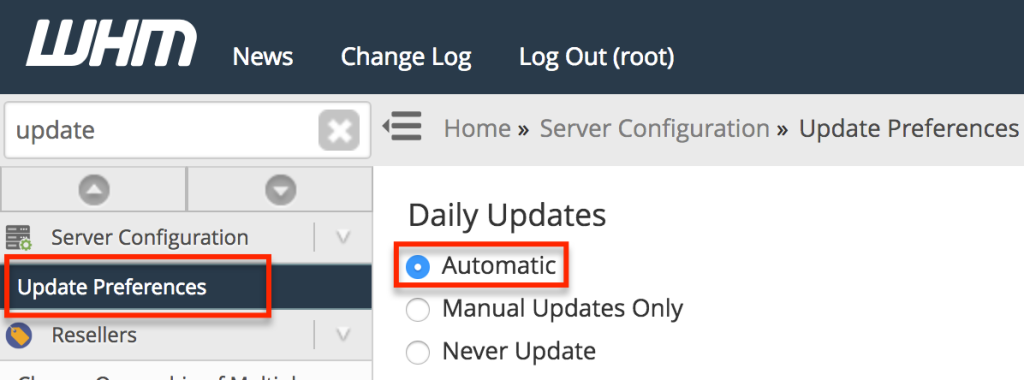
(Image: WHM Update Preferences interface, showing automatic update options.)
2. Strengthen Authentication and Access Controls
Weak passwords and unrestricted logins account for 80% of breaches. Enforce robust policies to lock down entry points.
Steps to Follow:
- Set Strong Password Policies: In WHM > Security Center > Password Strength Configuration, set the minimum strength to 50 or higher. This uses zxcvbn scoring to reject weak passwords.
- Enable Two-Factor Authentication (2FA): Go to WHM > Security Center > Two-Factor Authentication. Toggle it on for WHM and cPanel users. Users will need apps like Google Authenticator for TOTP codes.
- Disable Root SSH Login: Edit
/etc/ssh/sshd_configvia SSH: ChangePermitRootLogin yestono, then restart SSH withsystemctl restart sshd. Use sudo-enabled users instead. - Restrict Access by IP: In WHM > Security Center > Host Access Control, whitelist trusted IPs for WHM/cPanel (ports 2087/2083). Block all others.
Pro Tip: For shared hosting, disable shell access for non-admins: WHM > Account Functions > Manage Shell Access > Set to “Disabled” for all users except root.

(Image: Enabling 2FA in WHM Security Center, with QR code generation.)
3. Configure a Robust Firewall
Firewalls block unauthorized traffic, but with ConfigServer Firewall (CSF) reaching end-of-life in August 2025, transition to cPanel’s native tools or Imunify360.
Steps to Follow:
- Install/Configure Imunify360 (Recommended Post-CSF): If using CSF, migrate via WHM > Plugins > Imunify360. Enable firewall, intrusion prevention, and IP reputation blocking.
- Set Up Basic Firewall Rules: In WHM > Security Center > CSF & LFD (if still active), allow only essential ports: 80/443 (HTTP/HTTPS), 2087 (WHM), 22 (SSH, restricted). Block all else.
- Enable Login Failure Daemon (LFD): In CSF config (
/etc/csf/csf.conf), setLF_TRIGGERto 5 for banning IPs after failed logins. - Test Rules: Use tools like
nmapfrom an external machine to scan your server and verify blocks.
Pro Tip: Integrate with Cloudflare for DDoS protection: Add your domain in Cloudflare, enable WAF rules, and proxy traffic.
4. Implement SSL/TLS Encryption
Unencrypted traffic exposes data to man-in-the-middle attacks. cPanel’s AutoSSL makes HTTPS effortless.
Steps to Follow:
- Enable AutoSSL: In WHM > SSL/TLS > Manage AutoSSL, select a provider (e.g., cPanel’s Let’s Encrypt) and run the provisioner for all domains.
- Force HTTPS: Go to WHM > Tweak Settings > Require SSL and enable for all services (cPanel, Webmail, etc.).
- Disable Weak Protocols: In WHM > Service Configuration > Apache Configuration > Global Configuration, ensure only TLS 1.2+ are allowed. Restart Apache.
- Install Custom Certs: For OV/EV certs, use WHM > SSL/TLS > Install an SSL Certificate and upload files.
Pro Tip: Monitor expirations in WHM > SSL/TLS Status.
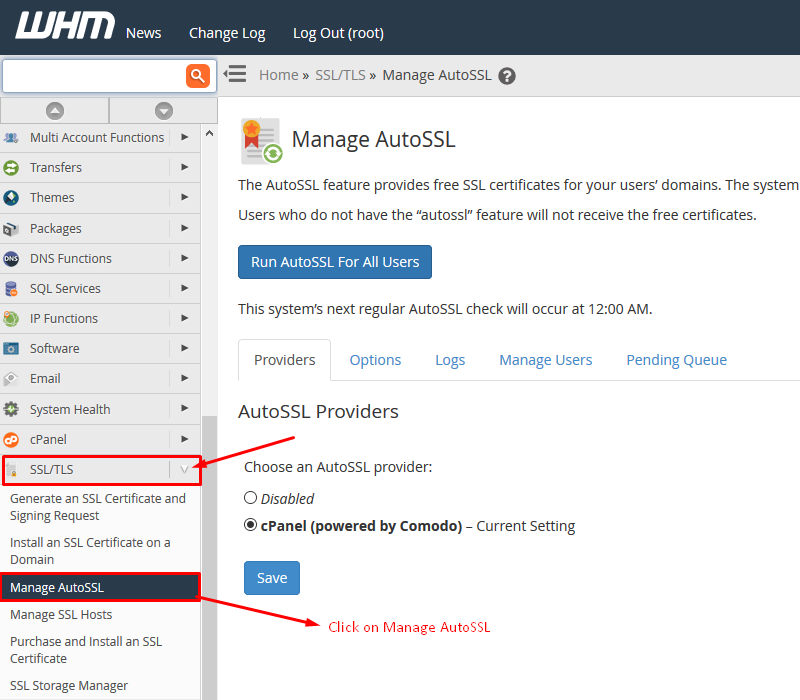
(Image: AutoSSL interface listing domains and certificate statuses.)
5. Secure User Accounts and Permissions
Compromised accounts can spread laterally. Isolate and limit privileges.
Steps to Follow:
- Create Least-Privilege Users: In WHM > Account Functions > Create a New Account, assign minimal features (e.g., no shell).
- Use CageFS for Isolation: Install CloudLinux (WHM > Plugins), then enable CageFS to sandbox users—prevents one hacked site from affecting others.
- Manage Groups: In WHM > Security Center > Manage Wheel Group Users, remove non-root users from wheel/sudo groups.
- Limit Compiler Access: Disable in WHM > Security Center > Compiler Access.
Pro Tip: Regularly audit accounts in WHM > List Accounts and suspend inactive ones.
6. Harden File and Directory Permissions
Incorrect permissions allow unauthorized reads/writes. Follow the 755/644 rule.
Steps to Follow:
- Set Default Permissions: In WHM > Tweak Settings, enable Apache mod_userdir Tweak to block ~username exploits.
- Use open_basedir: In WHM > MultiPHP INI Editor, add
open_basedir = /home/username:/tmp:/var/tmpper domain. - Enable FileProtect: During EasyApache 4 profiles, toggle FileProtect to restrict PHP file execution.
- Scan and Fix: Run
find /home -type f -perm 777 -exec chmod 644 {} \;via SSH (backup first!).
Pro Tip: Install Imunify360 for automated permission checks.
7. Protect Against Brute Force and Exploits
cPHulk and ModSecurity are your first lines of defense.
Steps to Follow:
- Enable cPHulk: In WHM > Security Center > cPHulk Brute Force Protection, set to “On” and whitelist your IP.
- Configure ModSecurity: WHM > Security Center > ModSecurity Configuration > Enable OWASP Core Rule Set. Set to “On” for detection + prevention.
- Harden PHP: Edit
/etc/php.ini:disable_functions = exec,passthru,shell_exec,system; expose_php = Off. Restart PHP-FPM.
Pro Tip: For WordPress sites, use WP Guardian for auto-patching.
8. Implement Malware Scanning and Intrusion Detection
Proactive scanning catches threats early.
Steps to Follow:
- Install ClamAV/ImunifyAV: Via WHM > Plugins > Virus Scanner, schedule daily scans.
- Enable Proactive Defense: With Imunify360, turn on real-time malware detection and auto-cleanup.
- Monitor Cron Jobs: In cPanel > Cron Jobs, review for suspicious entries (e.g., unauthorized scripts).
Pro Tip: Integrate Fail2Ban: Install via EasyApache, configure jails for SSH/FTP.
9. Set Up Backups and Disaster Recovery
Backups aren’t security, but they’re essential for recovery.
Steps to Follow:
- Configure Backups: WHM > Backup > Backup Configuration > Enable daily full backups, store remotely (e.g., S3).
- Test Restores: Monthly, restore a test account to verify.
- Enable Incremental: For efficiency, toggle in backup settings.
Pro Tip: Encrypt backups with GPG.
10. Enable Monitoring, Logging, and Audits
Visibility prevents escalation.
Steps to Follow:
- Set Up Logs: In WHM > Server Configuration > Tweak Settings, enable detailed Apache/PHP logging.
- Use Security Advisor: Run scans and address all “High” risks.
- Alerting: Configure email alerts for failures in WHM > Contacts > Add a Contact.
Pro Tip: Subscribe to cPanel’s security list for CVE alerts.
Conclusion
Securing a cPanel server is an ongoing process—implement these steps, then audit monthly. With features like AutoSSL, 2FA, and Imunify360, cPanel makes it easier than ever in 2025. If you’re new, start with the basics (updates, passwords, SSL); pros can layer on Imunify and custom rules. For hands-on help, consult cPanel’s docs or a certified partner. Stay vigilant—your server’s security is your site’s foundation.