
Are you looking to set up a powerful, open-source workflow automation tool on your own server? In this comprehensive guide, we’ll walk you through how to install n8n on a Linux VPS using both Docker and npm methods. n8n is a free alternative to Zapier or Make.com, allowing you to automate tasks across apps like Google Sheets, Slack, and more. Whether you’re a beginner or experienced sysadmin, this n8n installation tutorial covers prerequisites, setup, security, and troubleshooting for Ubuntu-based VPS providers like DigitalOcean, Hostinger, OVHcloud, or Contabo.
By self-hosting n8n, you gain full control, privacy, and scalability without subscription fees. Let’s dive into this step-by-step n8n VPS setup guide.
AI Workflow Automation Platform & Tools – n8n
What is n8n and Why Self-Host on a Linux VPS?
n8n (pronounced “n-eight-n”) is an extensible workflow automation platform that lets you connect APIs, databases, and services with no-code or low-code interfaces. It’s ideal for automating business processes, data syncing, or AI integrations.
Self-hosting on a Linux VPS offers:
- Cost savings: No cloud fees beyond your VPS plan.
- Data privacy: Keep everything on your server.
- Customization: Scale with your needs.
Popular use cases include email automation, CRM integrations, and social media scheduling. If you’re new, check out the official n8n docs for more.
Prerequisites for Installing n8n on Linux VPS
Before starting your n8n Linux installation, ensure:
- A Linux VPS (Ubuntu 22.04 or 24.04 recommended) with at least 1GB RAM and 20GB storage.
- Root or sudo access via SSH.
- A domain name (optional but recommended for HTTPS).
- Basic terminal knowledge.
Update your system first:
sudo apt update && sudo apt upgrade -yMethod 1: Install n8n Using Docker (Recommended for Ease)
Docker simplifies deployment by containerizing n8n. This method is production-ready and used by guides from DigitalOcean and Contabo.
Step 1: Install Docker and Docker Compose
Install Docker:
sudo apt install docker.io -y
sudo systemctl start docker
sudo systemctl enable docker
For Docker Compose:
sudo apt install docker-compose -yStep 2: Create Docker Compose File
Create a directory and file:
mkdir ~/n8n && cd ~/n8n
nano docker-compose.yml
Paste this configuration (uses PostgreSQL for persistence):
version: '3.8'

services:
  postgres:
    image: postgres:13
    environment:
      POSTGRES_DB: n8n
      POSTGRES_USER: n8n
      POSTGRES_PASSWORD: yourpassword
    volumes:
      - postgres-data:/var/lib/postgresql/data

  n8n:
    image: n8nio/n8n
    ports:
      - "5678:5678"
    environment:
      - DB_TYPE=postgresdb
      - DB_POSTGRESDB_DATABASE=n8n
      - DB_POSTGRESDB_HOST=postgres
      - DB_POSTGRESDB_PORT=5432
      - DB_POSTGRESDB_USER=n8n
      - DB_POSTGRESDB_PASSWORD=yourpassword
    volumes:
      - n8n-data:/root/.n8n
    depends_on:
      - postgres

volumes:
  postgres-data:
  n8n-data:
Replace yourpassword with a secure one.
Step 3: Start n8n
Run:
docker-compose up -dAccess n8n at http://your-vps-ip:5678. Set up your account.
For a video walkthrough, watch this tutorial on self-hosting n8n with Docker:
Self-Host n8n On Your Own VPS Server
Method 2: Install n8n Using npm (Native Installation)
For non-Docker setups, use npm. This is detailed in Hostinger and Medium guides.
Step 1: Install Node.js
Add the repository and install:
curl -fsSL https://deb.nodesource.com/setup_20.x | sudo -E bash -
sudo apt install -y nodejs
Verify:
node -v
npm -v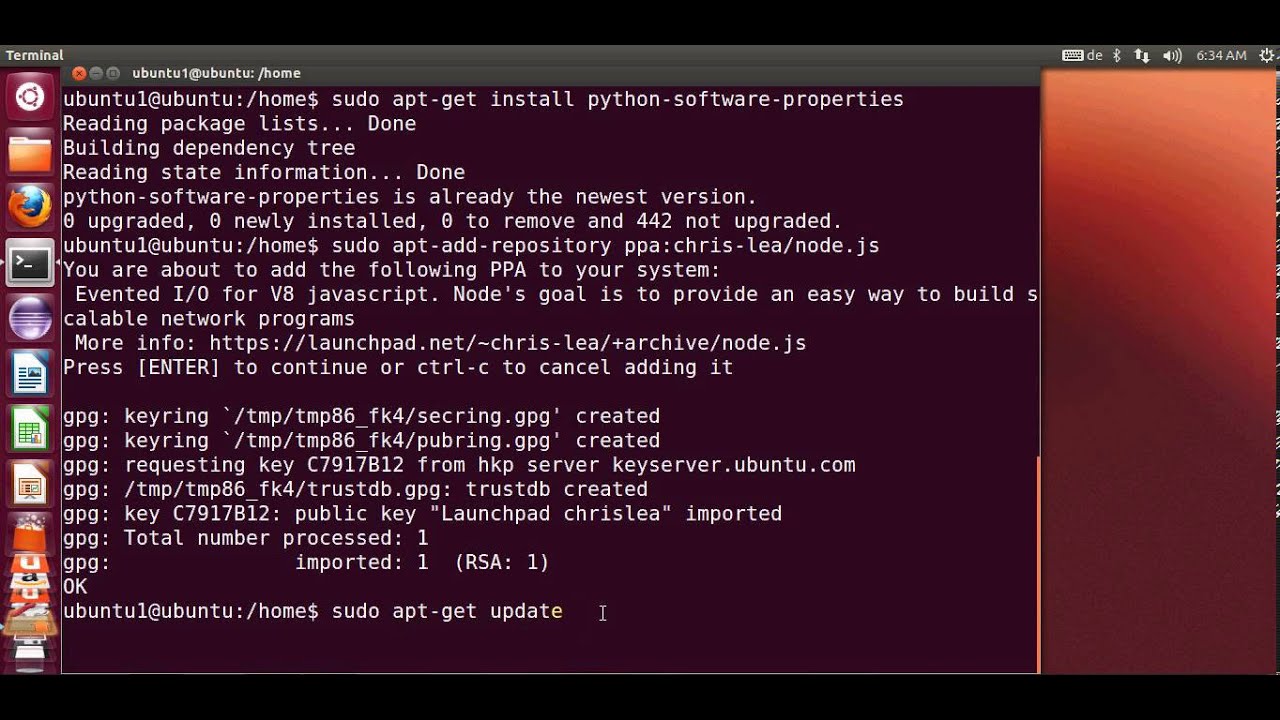
How to Install Node.js on Ubuntu
Step 2: Install n8n Globally
sudo npm install -g n8nStep 3: Run n8n
Start it:
n8n startAccess at http://localhost:5678. For background running, use PM2:
sudo npm install -g pm2
pm2 start n8n
pm2 startup
Check out this YouTube guide for npm installation:
Self-Host n8n on Ubuntu: Step-by-Step Guide using npm
Securing Your n8n Installation with Nginx and SSL
For production, use a reverse proxy.
Step 1: Install Nginx
sudo apt install nginx -yStep 2: Configure Nginx
Edit /etc/nginx/sites-available/default:
server {
    listen 80;
    server_name yourdomain.com;

    location / {
        proxy_pass http://localhost:5678;
        proxy_http_version 1.1;
        proxy_set_header Upgrade $http_upgrade;
        proxy_set_header Connection 'upgrade';
        proxy_set_header Host $host;
        proxy_cache_bypass $http_upgrade;
    }
}
Restart Nginx:
sudo systemctl restart nginx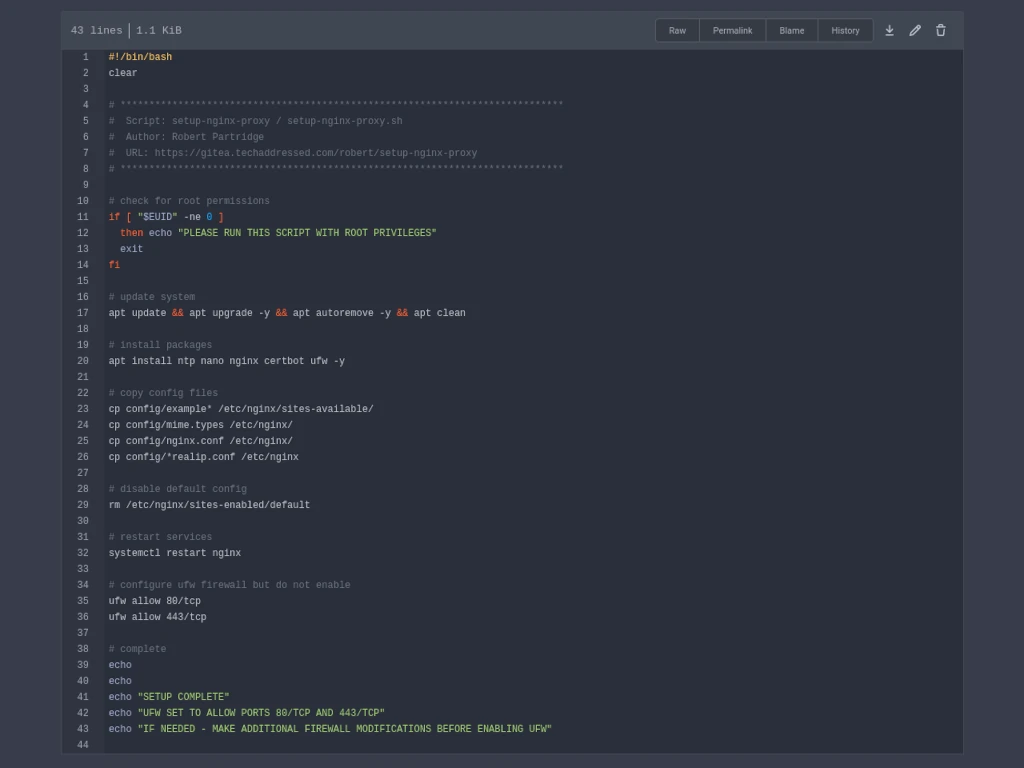
How To Setup & Configure A Nginx Reverse Proxy – Tech Addressed
Step 3: Add SSL with Certbot
sudo apt install certbot python3-certbot-nginx -y
sudo certbot --nginx -d yourdomain.com
Now access via HTTPS.
Running n8n as a Systemd Service
For reliability, create a service file /etc/systemd/system/n8n.service:
[Unit]
Description=n8n service
After=network.target

[Service]
ExecStart=/usr/local/bin/n8n start
Restart=always
User=root
Group=root
Environment=PATH=/usr/bin:/usr/local/bin
Environment=NODE_ENV=production

[Install]
WantedBy=multi-user.target
Enable:
sudo systemctl daemon-reload
sudo systemctl enable n8n
sudo systemctl start n8n
Install and Run n8n on Raspberry Pi (Full Guide, Docker + Systemd)
Exploring the n8n Dashboard
Once installed, log in to create workflows. The editor looks like this:
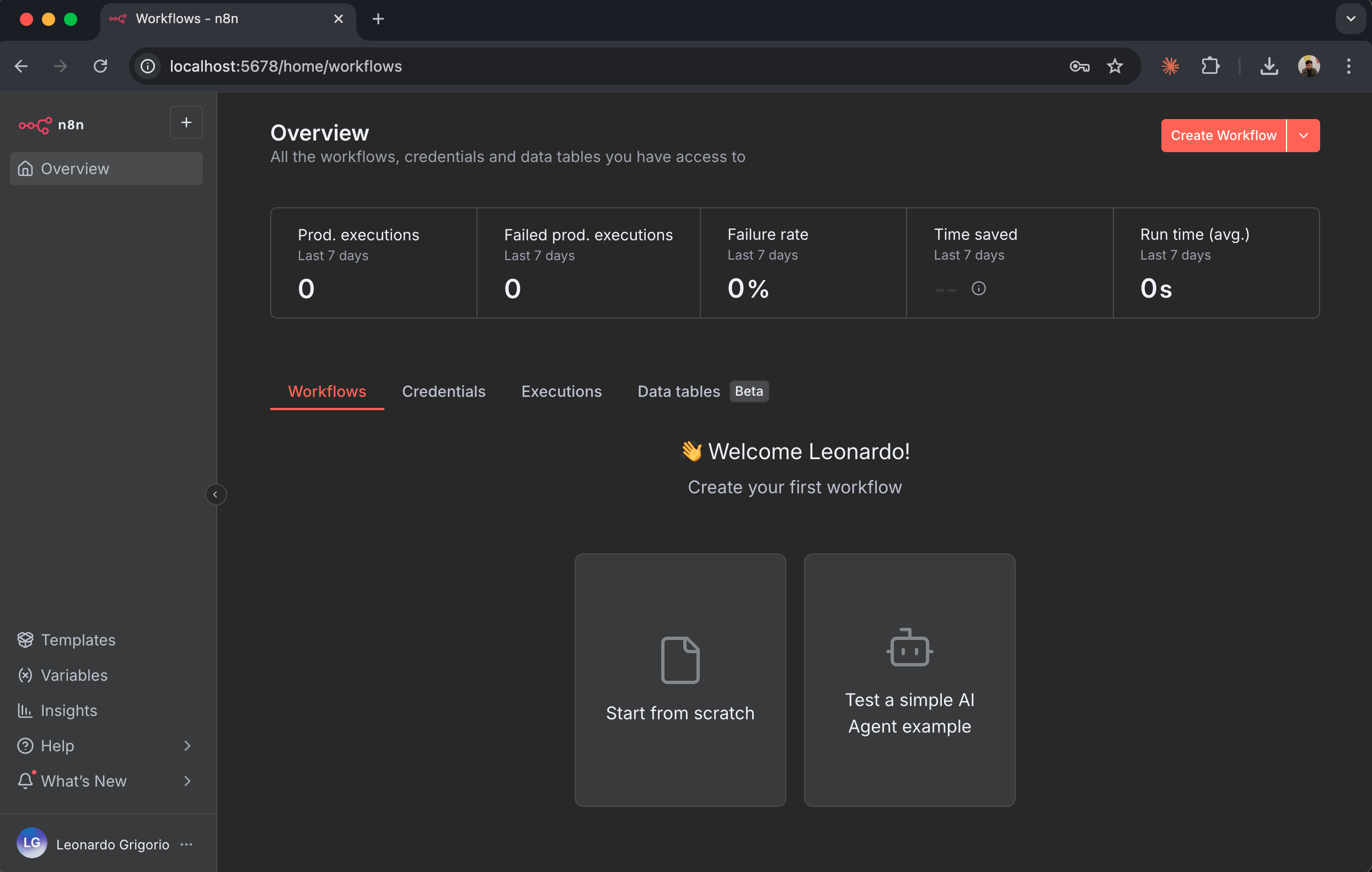
Firecrawl + n8n – Firecrawl Docs
Troubleshooting Common Issues
- Port issues: Ensure firewall allows 5678 (ufw allow 5678).
- Dependencies: If errors, reinstall Node.js or Docker.
- Persistence: Use volumes in Docker to avoid data loss.
For more, see community forums.
Conclusion: Get Started with n8n on Your VPS Today
You’ve now learned how to install n8n on a Linux VPS for seamless automation. Whether using Docker for simplicity or npm for customization, self-hosting empowers your workflows. Try it on a cheap VPS and scale as needed.
For visual learners, here’s another top tutorial video:
How to Install n8n on Your Own VPS
If you have questions, drop them in the comments below.