
This guide covers installing the Redis server and PHP extension for caching on cPanel with AlmaLinux 8/9, RockyLinux 8/9, or Ubuntu 22/24. Assume root SSH access and WHM/cPanel installed.
Prerequisites
- Root SSH access.
- At least 1GB RAM.
- Backup your server.
- For newer Redis versions, enable repositories as needed.
Step 1: Access the Server
Log into WHM at https://your-server-ip:2087 with root credentials for GUI steps, or SSH for commands.
Step 2: Install Redis Server
For AlmaLinux/RockyLinux 8/9 (RHEL-based)
SSH in and run:
dnf update -y
dnf install epel-release -y
dnf install https://rpms.remirepo.net/enterprise/remi-release-$(rpm -E %rhel).rpm -y
dnf --enablerepo=remi install redis -y
systemctl enable redis
systemctl start redis
systemctl status redis  # Verify active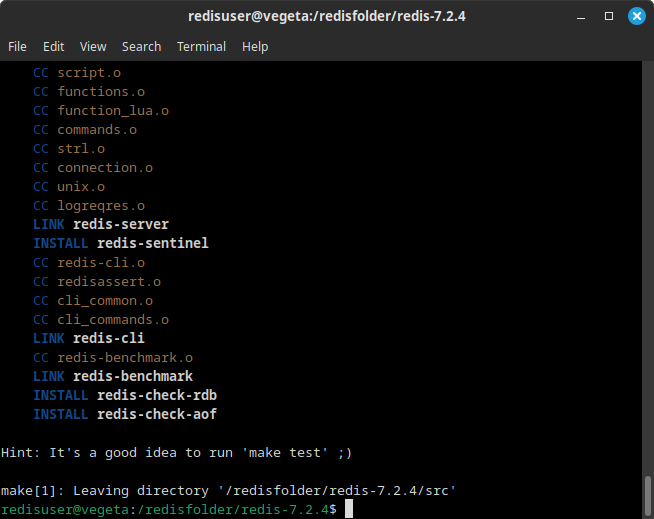
For Ubuntu 22/24
SSH in and run:
apt update -y
add-apt-repository ppa:redislabs/redis -y
apt install redis-server -y
systemctl enable redis-server
systemctl start redis-server
systemctl status redis-server  # Verify active
redis-cli ping # Should return PONGStep 3: Secure Redis
Edit the config file (/etc/redis/redis.conf or /etc/redis.conf):
vi /etc/redis/redis.conf- Set bind 127.0.0.1 (localhost only).
- Set requirepass YourStrongPassword.
- Optionally, rename dangerous commands (e.g., rename-command CONFIG “”).
Save, then:
systemctl restart redis # Or redis-server on UbuntuStep 4: Install Redis PHP Extension (Cache Module)
In WHM:
- Go to EasyApache 4 > Customize.
- Under PHP Extensions, search “redis”.
- Enable ea-phpXX-php-redis for your PHP versions (e.g., 8.1, 8.2).
- Review > Provision.
For Ubuntu cPanel, if EA4 packages aren’t available, use PECL via SSH:
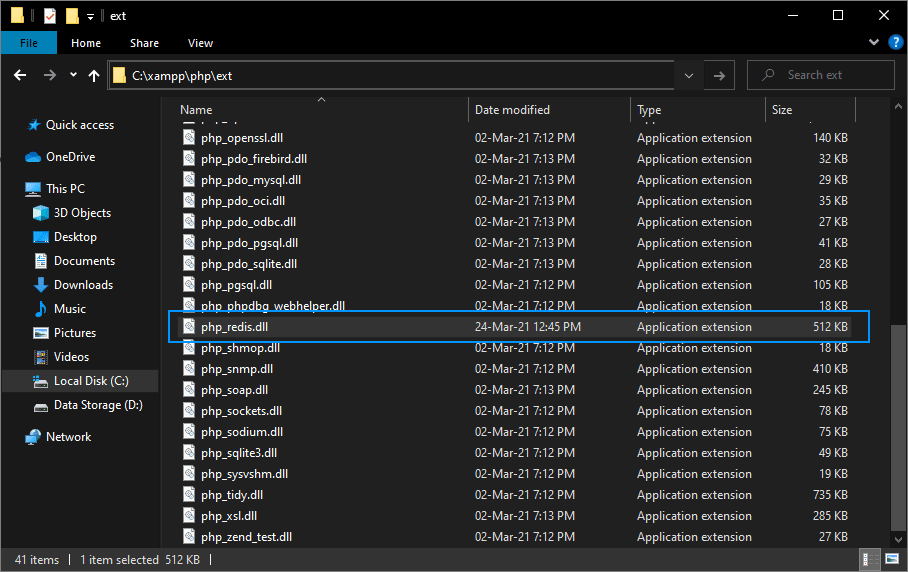
/opt/cpanel/ea-php81/root/usr/bin/pecl install redisAdd extension=redis.so to php.ini via MultiPHP INI Editor in cPanel.

Step 5: Verify Installation
- Check PHP: php -m | grep redis (should show “redis”).
- Create info.php in a site’s public_html: <?php phpinfo(); ?>.
- Visit yourdomain.com/info.php and search for “redis” section.
- Test connection with a PHP script if needed.
Troubleshooting
- If Redis won’t start: Check logs with journalctl -u redis.
- For CloudLinux/CageFS: Run cagefsctl –force-update after install.
- Ensure firewall allows localhost only (no public 6379).
Redis Performance Tuning on cPanel Servers
After installing Redis on AlmaLinux/RockyLinux 8/9 or Ubuntu 22/24 with cPanel (as covered previously), apply these performance optimizations. These focus on memory management, system tuning, persistence, and configuration for typical cPanel hosting workloads (e.g., WordPress caching). Always backup /etc/redis/redis.conf (or /etc/redis.conf) before editing. Check out our Redis powered cPanel hosting plans.
Step 1: Apply Linux Kernel Tunings (Critical for Redis)
Redis performs best with specific kernel settings. Apply as root via SSH.
Disable Transparent Huge Pages (THP)
THP causes latency spikes and higher memory usage with Redis.
Run:
echo never > /sys/kernel/mm/transparent_hugepage/enabled
echo never > /sys/kernel/mm/transparent_hugepage/defrag
Make persistent (AlmaLinux/RockyLinux/Ubuntu):
cat <<EOF >> /etc/sysctl.conf
vm.nr_hugepages = 0
vm.overcommit_memory = 1
EOF
sysctl -pEnable Memory Overcommit
Prevents fork() failures during background saves.
sysctl vm.overcommit_memory=1Step 2: Configure Redis Memory Limits
Edit /etc/redis/redis.conf (or /etc/redis.conf):
maxmemory 1gb                  # Set to ~70-80% of available RAM (e.g., 1gb on a 2GB server)
maxmemory-policy allkeys-lru   # Evicts least recently used keys (best for caching)
maxmemory-samples 5 # Higher for better accuracy, but more CPU- For pure caching:
allkeys-lruorallkeys-lfu. - For mixed cache/database:
volatile-lru(only expires keys with TTL).
Restart Redis:
systemctl restart redis # or redis-server on UbuntuStep 3: Optimize Persistence for Performance
Redis persistence (RDB/AOF) trades speed for durability. For cPanel caching (low durability need), minimize it.
Edit redis.conf:
# RDB (snapshots) - Good balance for caching
save 900 1          # Save if 1 change every 15 min
save 300 10         # Save if 10 changes every 5 min
save 60 10000       # Save if 10000 changes every minute

# AOF (append-only file) - Optional for better durability
appendonly yes
appendfsync everysec   # Sync every second (good balance)
# appendfsync always   # Every write (slower)
# appendfsync no       # Let OS decide (fastest, riskier)

auto-aof-rewrite-percentage 100
auto-aof-rewrite-min-size 64mb- Caching only → Disable persistence (
appendonly no, commentsavelines) for max speed. - Some durability → Use
appendfsync everysec+ RDB.
Restart Redis after changes.
Step 4: Additional Redis Config Tweaks
tcp-keepalive 60               # Close idle connections
timeout 0                      # No client timeout (or set low)
maxclients 10000               # Increase if needed
slowlog-log-slower-than 10000  # Log commands >10ms
slowlog-max-len 128            # Keep last 128 slow commands
For high concurrency:
io-threads 4                   # Enable multi-threading (Redis 6+)
io-threads-do-reads yesStep 5: Verify and Monitor Performance
- Check config:
redis-cli CONFIG GET maxmemory - Monitor:
redis-cli INFO memoryorredis-cli INFO stats - Latency test:
redis-cli --latency - Tools: Install RedisInsight or use
redis-cli MONITORbriefly.
Summary of Key Settings
| Setting | Recommended Value (Caching) | Purpose |
|---|---|---|
| vm.overcommit_memory | 1 | Prevents fork failures |
| Transparent Huge Pages | Disabled | Reduces latency spikes |
| maxmemory | 70-80% of RAM | Prevents OOM |
| maxmemory-policy | allkeys-lru | Efficient eviction |
| appendfsync | everysec (or no) | Balance durability/performance |
| save (RDB) | Minimal or disabled | Faster restarts |
Test changes under load (e.g., with redis-benchmark). Monitor server RAM/CPU via WHM or htop. For production, consider dedicated Redis servers if traffic grows.
Redis Security Hardening on cPanel Servers
Building on the previous installation and performance tuning, this guide focuses on hardening Redis against common threats like unauthorized access, brute-force attacks, and exploitation. These steps are essential for production cPanel environments (AlmaLinux/RockyLinux 8/9, Ubuntu 22/24). Redis is not encrypted by default and binds to all interfaces in some setups—never expose port 6379 publicly.
Always backup /etc/redis/redis.conf (or /etc/redis.conf on Ubuntu) before changes.
Step 1: Bind Redis to Localhost Only
Prevent external access by binding to 127.0.0.1.
Edit the config:
vi /etc/redis/redis.confFind and set:
bind 127.0.0.1 ::1  # IPv6 optional
protected-mode yes    # Enables if no bind/auth (Redis 3+)
Restart Redis:
systemctl restart redis # or redis-server on UbuntuStep 2: Enable Strong Authentication
Set a complex password (at least 32 characters, random).
In redis.conf:
requirepass YourVeryStrongRandomPasswordHereTest with:
redis-cli
AUTH YourPassword
PING  # Should return PONG
For Redis 6+, use ACLs (preferred over legacy password):
# Disable default user
user default off

# Create dedicated user for apps (e.g., WordPress)
user cacheuser on >AnotherStrongPassword ~keys:* +@all
Update PHP apps (e.g., object cache plugins) to use the new username/password.
Step 3: Disable or Rename Dangerous Commands
Prevent misuse of commands like FLUSHALL, CONFIG, DEBUG.
In redis.conf:
rename-command FLUSHALL ""
rename-command FLUSHDB ""
rename-command CONFIG ""
rename-command KEYS ""
rename-command EVAL ""
Set to "" to disable entirely.
Step 4: Firewall Restrictions
Block external access to port 6379.
AlmaLinux/RockyLinux (firewalld):
firewall-cmd --permanent --add-port=6379/tcp --zone=internal
firewall-cmd --permanent --remove-port=6379/tcp --zone=public
firewall-cmd --reloadUbuntu (UFW):
ufw allow from 127.0.0.1 to any port 6379
ufw deny 6379
ufw reload
In cPanel/WHM: Use ConfigServer Firewall (CSF) if installed, or WHM > Security Center > Firewall
Step 5: Additional Hardening
- Run as non-root: Redis defaults to
redisuser—verify withps aux | grep redis. - Disable protected mode warnings only if bind/auth are set.
- Limit memory (from performance guide) to prevent DoS.
- Keep updated:
dnf update redisorapt update && apt upgrade redis-server. - No TLS for localhost: Skip unless remote access needed (advanced: stunnel or Redis 6+ TLS).
- Monitoring: Use
redis-cli INFOand watch logs/var/log/redis/redis.log
Key Security Best Practices Summary
| Measure | Configuration | Threat Mitigated |
|---|---|---|
| Bind to localhost | bind 127.0.0.1 | External unauthorized access |
| Authentication | requirepass or ACLs | Brute-force / unauthorized use |
| Disable commands | rename-command ... "" | Malicious command execution |
| Firewall | Block 6379 externally | Network attacks |
| Updates & Monitoring | Regular patches, logs | Known vulnerabilities (e.g., CVEs) |
Test thoroughly—e.g., try connecting from external IP (should fail). For shared cPanel hosting, localhost binding + auth is usually sufficient since PHP connects locally.