
OpenPanel is a modern, next-generation web hosting control panel designed to simplify server management for hosting providers, developers, and users. Built around Docker containers, it emphasizes isolation, security, and flexibility, making it an excellent alternative to traditional panels like cPanel or Plesk. Each user on OpenPanel gets their own isolated environment, complete with dedicated instances of MySQL servers, customizable PHP versions (ranging from 5.6 to 8.4), Redis, and more. This containerized approach ensures that one user’s activities don’t impact others, enhancing stability and security.
Key features include support for multiple web servers such as Nginx, OpenLiteSpeed, Apache, OpenResty, and Varnish, alongside databases like MySQL, MariaDB, and Percona. Additional services like Redis, Varnish, Elasticsearch, and Memcached are readily available. OpenPanel excels in resource management with limits on CPU, memory, disk space, inodes, and ports. It offers robust security tools, including CorazaWAF for web application firewall protection, ImunifyAV for malware scanning, two-factor authentication (2FA), IP blocking, and restricted access to MySQL and SSH. Monitoring capabilities provide detailed logging, visitor visualization, and resource usage analysis.
Useful facts: OpenPanel is open-source with a free Community Edition for basic use, while the Enterprise Edition costs a fixed €14.95 per month and unlocks advanced features like premium support and additional integrations. It’s multi-tenant, supports custom branding, and includes remote backups. For WordPress users, it integrates WP-CLI for seamless management. The panel boasts over 100 terminal commands via OpenCLI, allowing admins to handle tasks like user creation, domain suspension, PHP version switching, and WAF configuration directly from the command line. A demo is available at https://demo.openpanel.org:2087/login for hands-on exploration.
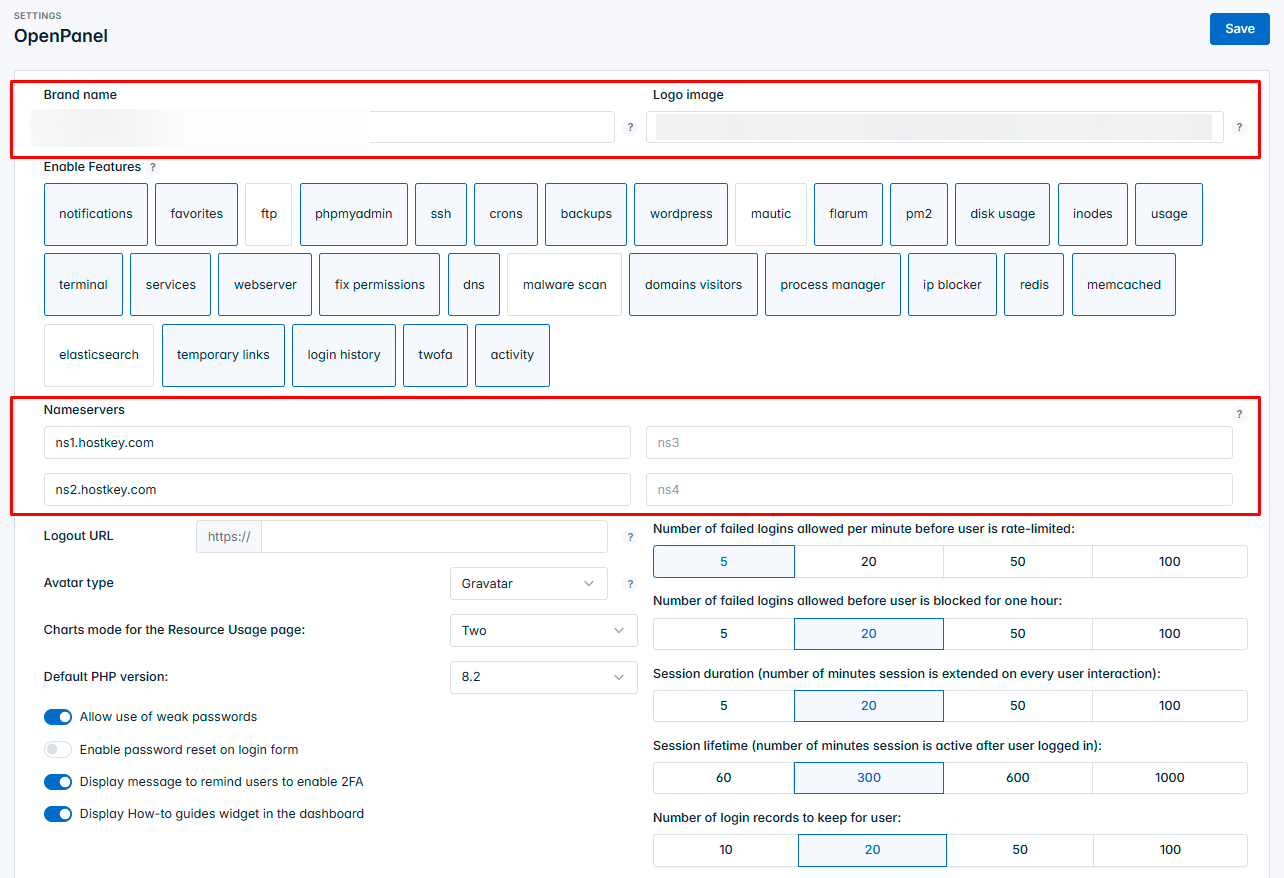
Here’s a glimpse of the OpenPanel dashboard, showcasing its clean and intuitive interface for managing users, domains, and resources:
OpenPanel – Documentation & FAQ
Prerequisites for Installation
Before installing OpenPanel, ensure your server meets the following requirements based on official guidelines:
- A fresh VPS or dedicated server running Ubuntu 22.04 LTS or Debian (tested and recommended; other distributions may work but are not officially supported).
- Root access via SSH.
- At least 2 GB of RAM, 20 GB of disk space, and a multi-core CPU for optimal performance.
- A static IP address and a domain name pointed to the server (for post-installation setup).
- No existing control panels or conflicting software (e.g., remove Apache or Nginx if pre-installed).
OpenPanel’s installation script handles most dependencies automatically, including Docker setup, but starting with a clean OS install is crucial to avoid conflicts.
Step-by-Step Installation Guide
The installation process is straightforward and typically takes about 5-10 minutes. It’s done via a simple bash script that automates the setup. Follow these steps carefully.
Step 1: Connect to Your Server
Log in to your server as the root user via SSH. If you’re using a non-root user with sudo privileges, switch to root by running sudo -i. This ensures you have full administrative access.
For example, using a terminal:
text
ssh root@your-server-ipStep 2: Run the Installation Script
Execute the official installation command to download and run the installer. This script will install Docker (if not present), set up the necessary containers, and configure the panel.
Copy and paste this command:
text
bash <(curl -sSL https://openpanel.org)The script will prompt you for confirmation and handle the rest. It downloads components from official repositories, sets up services, and generates initial admin credentials.
Here’s a screenshot illustrating a typical installation process in the terminal (from a community tutorial video):

Installing OpenPanel 0.1.5 on Ubuntu 22.04
During installation, you’ll see progress updates for tasks like installing dependencies, configuring Docker, and starting services. If any errors occur (e.g., due to incompatible OS), the script will notify you—common fixes include updating your system with apt update && apt upgrade beforehand.
Step 3: Access the OpenPanel Admin Interface
Once installation completes, the script will display your admin login details, including the URL (typically https://your-server-ip:2087), username (usually “admin”), and a randomly generated password. Note these down immediately.
Open a web browser and navigate to the provided URL. You’ll be prompted to log in. For security, change the password right away via the admin settings.
If you’re setting this up on a production server, configure SSL certificates (OpenPanel supports Let’s Encrypt integration) and firewall rules to allow ports like 2087 (admin panel), 2083 (user panel), 80/443 (web), and 22 (SSH).
Step 4: Post-Installation Configuration
- Update OpenPanel: Run opencli update in the terminal to ensure you’re on the latest version.
- Add Users and Domains: From the admin dashboard, create new users, assign resources, and add domains. Each user gets isolated access via https://your-server-ip:2083.
- Enable Security Features: Activate 2FA, set up WAF rules, and configure backups.
- Customize Branding: In the Enterprise Edition, upload your logo and adjust themes.
- Monitor and Optimize: Use the built-in tools to track resource usage and logs.
If you encounter issues, refer to the official documentation at https://openpanel.com/docs/ or community forums. Common tips: Ensure Docker is running (systemctl status docker), and restart services if needed (opencli restart).
Why Choose OpenPanel?
Beyond ease of installation, OpenPanel stands out for its efficiency—using containers reduces overhead compared to VM-based isolation. It’s ideal for shared hosting environments, supporting unlimited domains and users (hardware-dependent). With features like one-click WordPress installs and seamless migrations from cPanel (via backup imports), it’s user-friendly for beginners while powerful for pros.
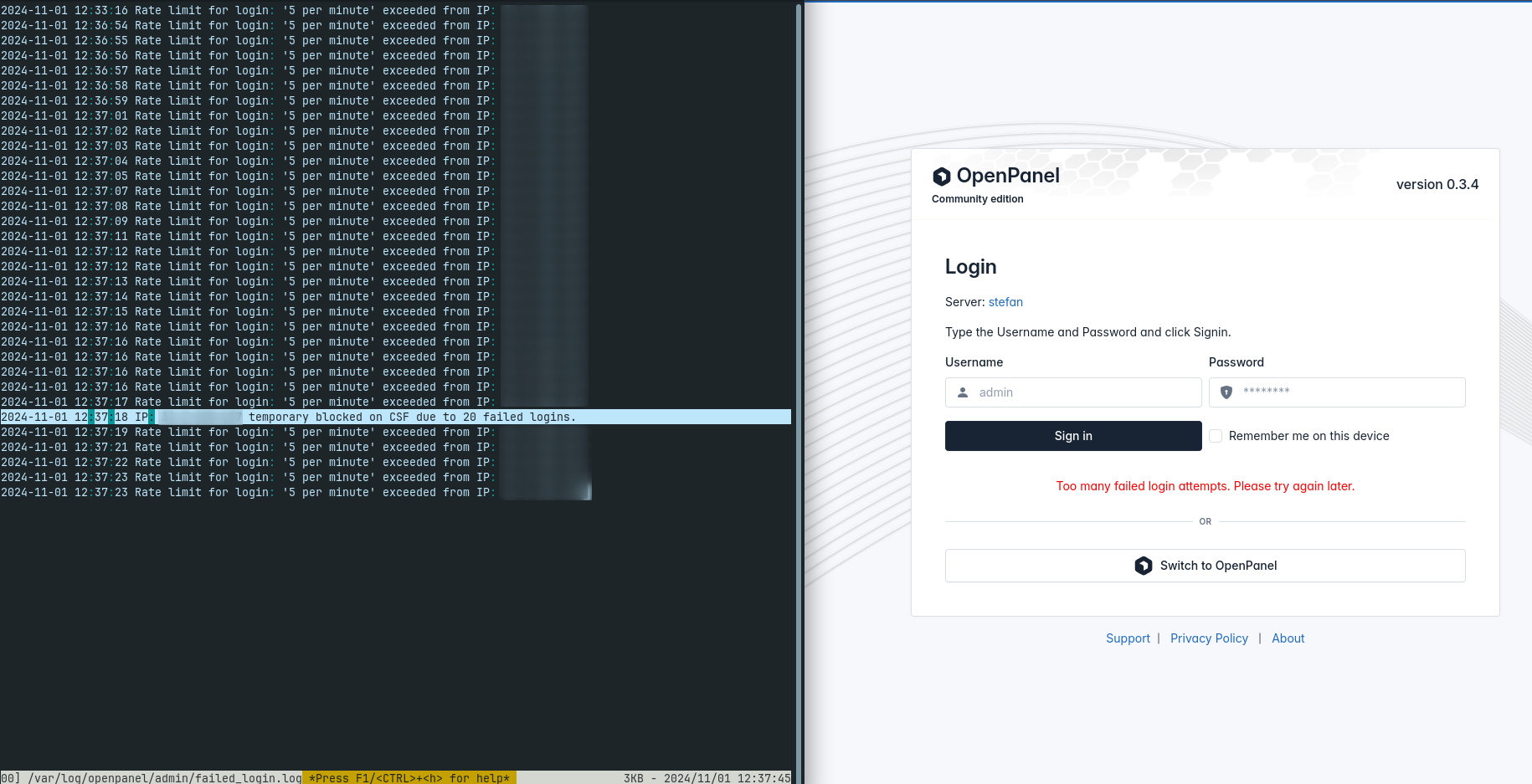
For a visual comparison of OpenPanel’s admin interface elements:
Get Started with OpenAdmin | OpenPanel
In summary, OpenPanel democratizes advanced hosting management with its free tier and scalable features, making it a smart choice for anyone looking to host websites securely and efficiently. If you’re upgrading to Enterprise, visit https://openpanel.com/enterprise/ for details.