On this page
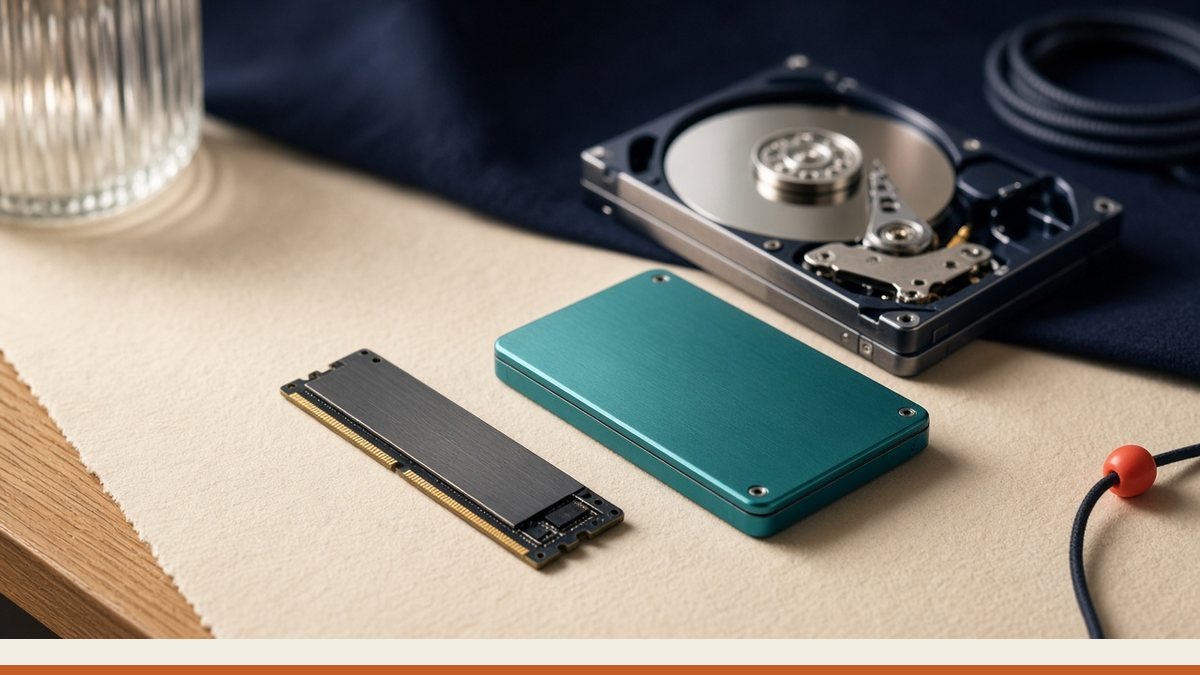
NVMe, SATA SSD, and HDD are three kinds of storage that behave very differently under a website. NVMe is flash storage on a PCIe bus with a deep queue, so it handles many small reads and writes at once. SATA SSD is still flash, but it rides an older bus with lower queue depth. HDD uses spinning platters and struggles with the random I/O that WordPress, PHP, and MariaDB generate all day. For a live site on our platform, NVMe is the media you want under the account.
df -h
df -i
vmstat 1 5
Run those checks before you change plan size. df -h shows free space, and df -i shows inodes, which fill up when you have huge numbers of tiny files. In vmstat, watch the wa column for a few seconds. High iowait means the guest is waiting on disk right now. If iowait stays low, the slowdown is probably PHP, SQL, or cache, not the drive itself.
What each media type is good for
HDD still works for cold archives and files you rarely touch. It is a poor fit for MariaDB, session storage, or a busy wp-admin. SATA SSD feels much snappier after HDD and is fine for many lighter VPS workloads. NVMe is what we place under plans where admin screens and InnoDB matter, because the queue can keep up with lots of concurrent tiny requests. The guest still talks to the hypervisor, so a noisy neighbor problem shows up as steal time, not as a disk type issue.
Buying a larger disk does not fix a missing database index. Doubling capacity also will not lower TTFB when the delay is PHP, a slow query, or a cache miss. Inode exhaustion can look like a full disk even when df -h still shows free space, so always check df -i. When space really does run out, the usual culprits are old backups, large logs, and forgotten staging copies rather than the CMS core files.
Choose the media, then fix the app
If your WordPress site still sits on HDD, move it to NVMe first. That single change often makes wp-admin usable again. If you are already on NVMe and the admin area is slow, look at the query plan and your object cache next. The disk has done its job; the application path has not. More IOPS help until the query or the uncached page is the bottleneck. More terabytes on HDD only give you a larger slow disk.
Write down the current media type before you resize a VPS. Resizing for space when you needed better IOPS is how you pay twice and still wait on the same symptoms. If you already added capacity and iowait never dropped, the remaining work is the slow query, the cache layer, or CPU steal—not another disk add-on.
Practical checks before you open a ticket
Confirm free space and inodes with the commands above. Note whether iowait spikes during the slow action. If iowait is calm on NVMe, paste a slow query sample and mention your backup window when you write in. That gives support a clear path instead of another blind disk upgrade.
- HDD: archives and cold data only for active sites.
- SATA SSD: acceptable for lighter workloads after leaving HDD.
- NVMe: preferred for WordPress, InnoDB, and frequent admin use.
Name the media first, measure iowait second, and only then decide whether a plan change or an application fix is the right next step.
Tagged
Was this article helpful?
Be the first to rate this article.