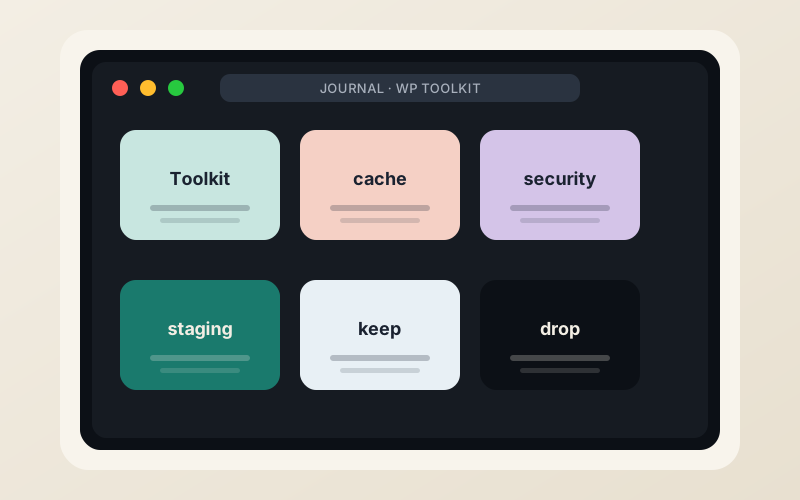
cPanel’s WordPress Toolkit can install, update, stage, and secure WordPress sites from the panel. Many customers still add a collection of plugins on top. Six months later, the plugins that remain are a shorter list than the ones that were installed in the first week.
What the Toolkit already covers for many sites
- Installation and basic configuration.
- One-click updates (with the option to delay or test).
- Staging and pushing changes.
- Security scanning and hardening toggles.
- Maintenance mode and basic cloning.
For a straightforward site, that coverage reduces the need for several categories of plugins.
The plugins that tend to stay
- A well-configured caching plugin (or the server-level LiteSpeed Cache when available).
- An SEO plugin the site owner actually uses.
- A forms or membership plugin that is core to the site’s function.
- Occasionally a page builder, if the site was built with one.
The plugins that get removed are often the ones that duplicated Toolkit features, added admin bloat, or created compatibility problems after a core or PHP update.
The tickets that result
“The site is slow and I have 40 plugins.” “An update broke the layout and I do not have a staging copy.” “A security plugin is fighting with the server-level scanner.”
The Toolkit does not make those tickets impossible. It makes the baseline management tasks less dependent on a pile of plugins that each need their own updates and configuration.
Practical approach
Start with the Toolkit features. Add plugins only for functionality the Toolkit does not provide. Keep staging in the workflow so that updates are tested. Prefer server-level caching and security where the host provides them, because they usually have less per-site overhead.
The sites that stay maintainable are the ones whose plugin list is intentional rather than accumulative.
Written at the desk
ChadBe the first to weigh in.