In today’s digital age, your iPhone holds a treasure trove of personal information, from photos and messages to banking details and health data. Protecting it from unauthorized access, theft, and cyber threats is crucial. While iPhones come with robust built-in security features, taking proactive steps can significantly enhance your device’s safety. This article explores numerous ways to secure your iPhone, offering practical tips that anyone can implement. We’ll cover everything from basic settings to advanced protections, ensuring your device remains a fortress against potential risks.
1. Set a Strong Passcode
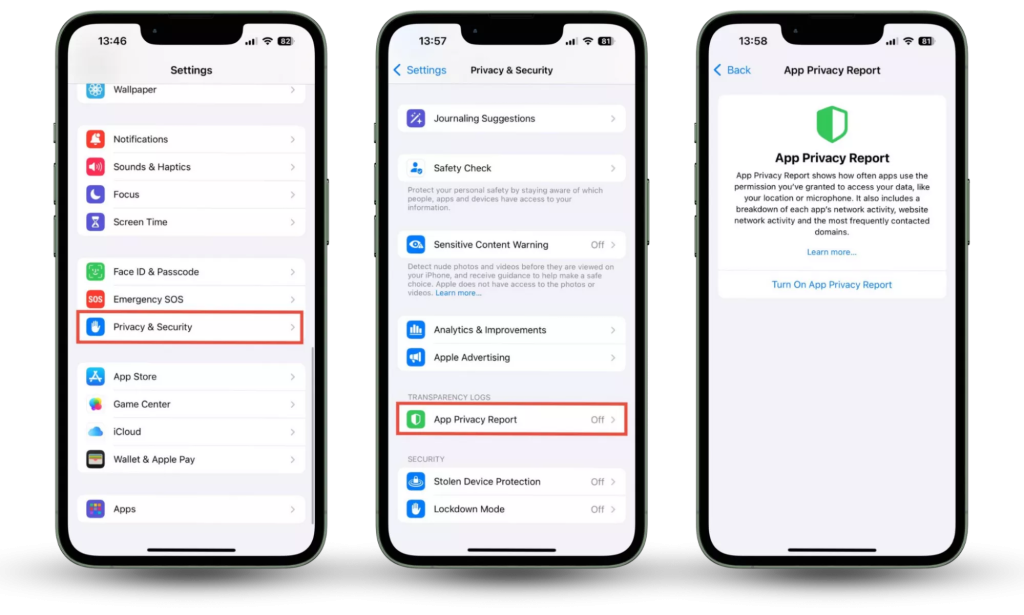
Privacy & Security
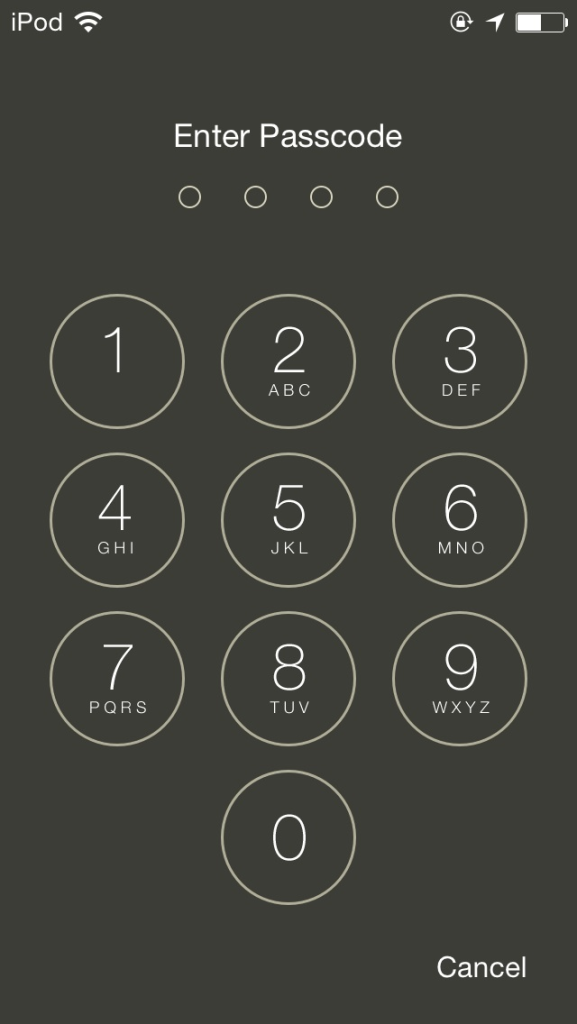
Start with the fundamentals: a strong passcode is your first line of defense. Opt for at least a six-digit code or, better yet, an alphanumeric passcode that combines letters, numbers, and symbols. This makes it exponentially harder for someone to guess or brute-force their way in. Avoid simple patterns like “123456” or your birthdate. To set this up, go to Settings > Face ID & Passcode > Change Passcode, and select “Passcode Options” to choose a custom type.
2. Enable Face ID for Quick and Secure Access
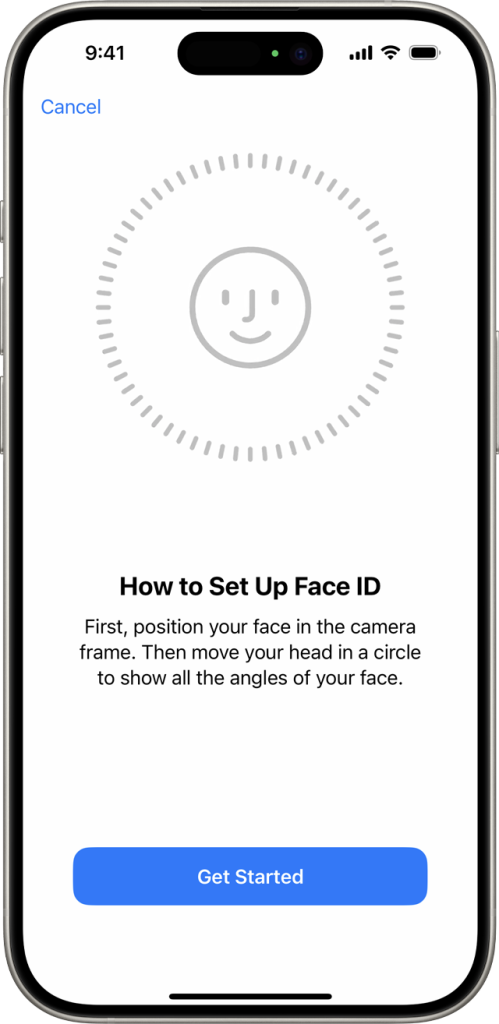
Face ID uses advanced facial recognition to unlock your iPhone securely. It scans your face with a TrueDepth camera, creating a mathematical model that’s stored encrypted on your device. Enable it by navigating to Settings > Face ID & Passcode > Set Up Face ID, and follow the on-screen instructions to capture your face from various angles. This not only speeds up unlocking but also adds a layer of biometric security that’s difficult to spoof.
3. Keep Your iOS Software Updated
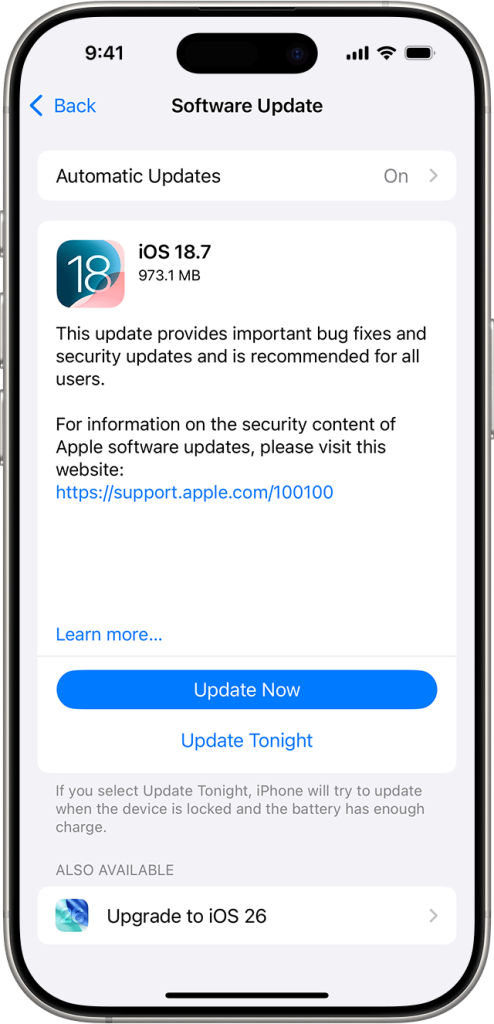
Regular software updates are vital as they patch security vulnerabilities and introduce new protective features. Enable automatic updates in Settings > General > Software Update > Automatic Updates. This ensures your iPhone downloads and installs the latest iOS versions overnight when it’s charging and connected to Wi-Fi. Delaying updates can leave your device exposed to known exploits.
4. Turn On Two-Factor Authentication for Your Apple ID
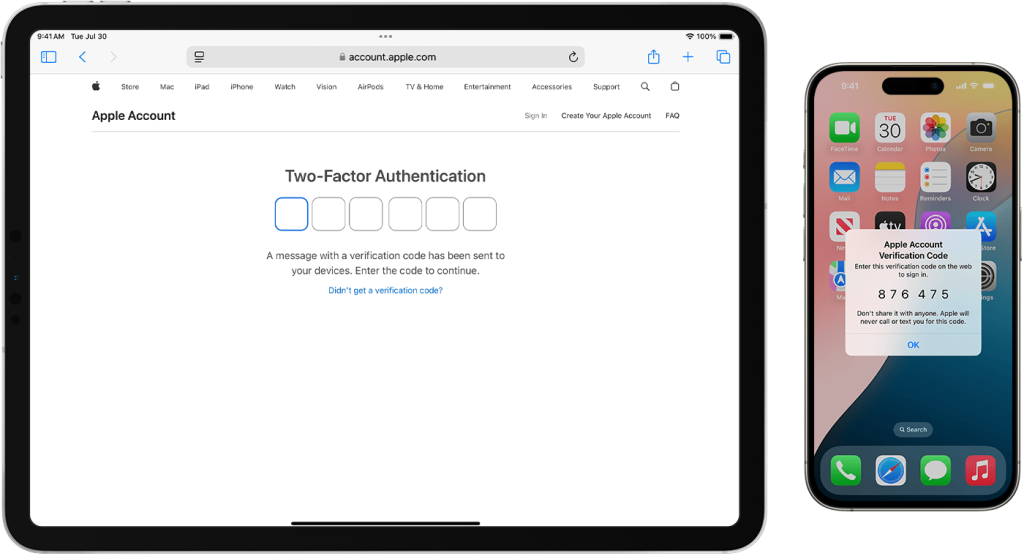
Two-factor authentication (2FA) adds an extra verification step when signing into your Apple ID. It requires a code sent to a trusted device or phone number, preventing unauthorized access even if someone knows your password. Activate it via Settings > [Your Name] > Sign-In & Security > Two-Factor Authentication. This is essential for protecting iCloud data and App Store purchases.
5. Manage App Permissions Carefully
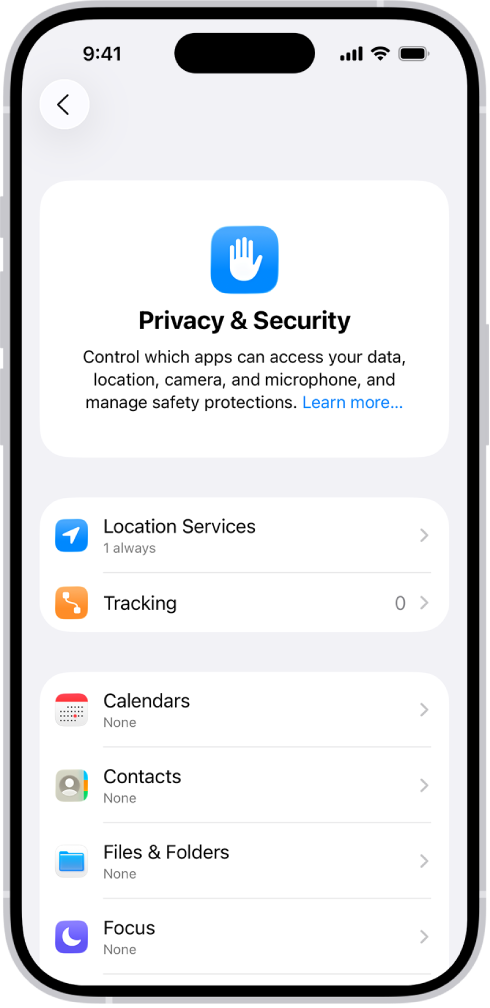
Apps often request access to your location, camera, microphone, and more. Review and restrict these in Settings > Privacy & Security. For each category, like Location Services or Photos, you can toggle permissions per app. Only grant what’s necessary—for instance, a weather app needs location, but not your contacts. Regularly audit these to minimize data exposure.
6. Enable Stolen Device Protection
This feature limits what a thief can do if they steal your iPhone and know your passcode. It requires biometric authentication for sensitive actions like changing your Apple ID password or turning off Find My. Turn it on in Settings > Face ID & Passcode > Stolen Device Protection. It’s particularly useful in unfamiliar locations, adding delays to critical changes.
7. Use a VPN for Public Wi-Fi
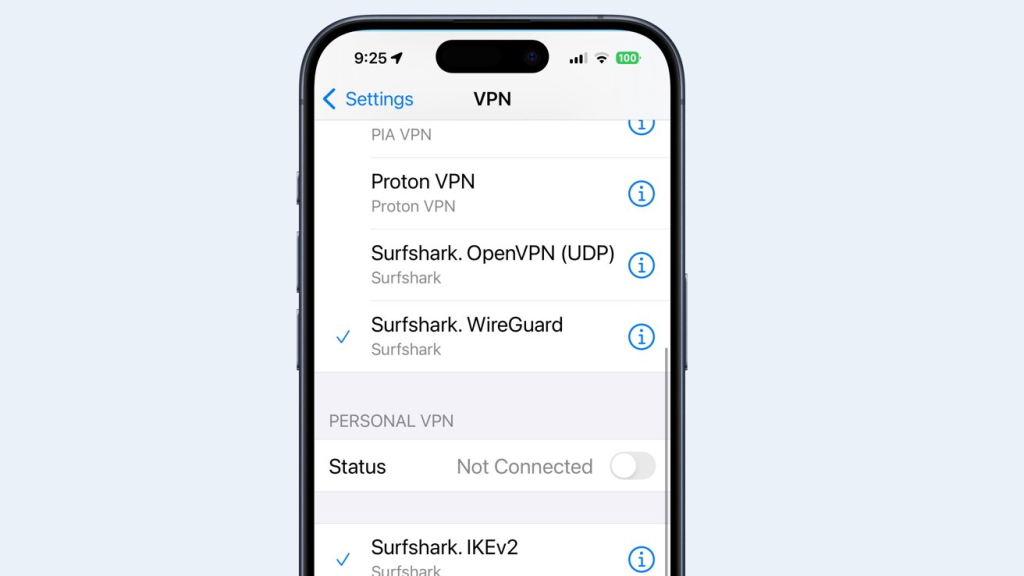
Public Wi-Fi networks are hotspots for eavesdropping. A Virtual Private Network (VPN) encrypts your internet traffic, making it secure. Install a reputable VPN app from the App Store, such as those from providers like ExpressVPN or NordVPN, and connect whenever on unsecured networks. Configure it in Settings > VPN to auto-connect on demand. For reliable options, check out services like NordVPN.
8. Activate Find My Network
Find My helps locate your iPhone if lost or stolen, even offline, by leveraging a crowdsourced network of Apple devices. Enable it in Settings > [Your Name] > Find My > Find My iPhone. Turn on “Find My network” and “Send Last Location” to transmit your device’s position when the battery is low. This also allows you to play a sound, mark it as lost, or erase it remotely.
9. Set Auto-Lock to a Short Interval
Minimize the window for unauthorized access by setting your screen to lock quickly. In Settings > Display & Brightness > Auto-Lock, choose 30 seconds. This ensures your iPhone locks shortly after inactivity, requiring authentication to access again.
10. Disable Lock Screen Notifications and Controls
Sensitive information can appear on your lock screen. Prevent this by going to Settings > Face ID & Passcode > Allow Access When Locked, and toggling off options like Notification Center, Control Center, and Reply with Message. This stops prying eyes from viewing previews or accessing features without unlocking.
11. Enable Data Erase After Failed Attempts
Protect against brute-force attacks by enabling automatic data erasure after 10 failed passcode attempts. Find this in Settings > Face ID & Passcode > Erase Data. Once activated, your iPhone will wipe itself clean, safeguarding your data from persistent intruders.
12. Use Apple’s Built-in Password Manager
iCloud Keychain securely stores and autofills passwords across devices. Enable it in Settings > [Your Name] > iCloud > Passwords. It generates strong, unique passwords and alerts you to compromised ones. For added security, use it with 2FA wherever possible.
13. Turn On Advanced Data Protection for iCloud

This end-to-end encrypts more iCloud data categories, like device backups and photos, so only you can access them. Activate it in Settings > [Your Name] > iCloud > Advanced Data Protection. Note that it requires all your devices to be on the latest software.
14. Regularly Review and Delete Unused Apps
Unused apps can be security risks if they have lingering permissions. Go to Settings > General > iPhone Storage to see and offload or delete apps you no longer need. This reduces potential attack surfaces and frees up space.
15. Avoid Entering Passcode in Public
In crowded areas, shoulder surfers might watch you enter your passcode. Rely on Face ID instead, and if needed, check your surroundings before typing. This simple habit prevents passcode theft.
16. Limit Ad Tracking and Analytics
Reduce data collection by apps and advertisers. In Settings > Privacy & Security > Apple Advertising, turn off Personalized Ads. Also, under Analytics & Improvements, disable Share iPhone Analytics to stop sending usage data to Apple.
17. Enable Lockdown Mode for High-Risk Users
If you’re at elevated risk of targeted attacks, like journalists or activists, Lockdown Mode restricts certain features to bolster security. Activate it in Settings > Privacy & Security > Lockdown Mode. It blocks message attachments, limits web technologies, and more.
18. Be Vigilant Against Phishing Attempts
Phishing emails or texts can trick you into revealing credentials. Always verify links before clicking—hover or long-press to check URLs. Use Apple’s Mail Privacy Protection in Settings > Mail > Privacy Protection to hide your IP and prevent email tracking. For more on spotting scams, visit the FTC’s site at ftc.gov.
19. Secure Your iCloud Backups
Ensure backups are encrypted by using iCloud Backup in Settings > [Your Name] > iCloud > iCloud Backup. Combined with Advanced Data Protection, this keeps your backed-up data safe from unauthorized access.
20. Monitor App Privacy Report
iOS’s App Privacy Report logs how apps access your data and network activity. Enable it in Settings > Privacy & Security > App Privacy Report. Review it periodically to spot unusual behavior and revoke permissions as needed.
By implementing these tips, you’ll significantly strengthen your iPhone’s security posture. Remember, security is an ongoing process—regularly review your settings and stay informed about new threats. For comprehensive guides, Apple’s support site is an excellent resource. Stay safe out there!