In the ever-evolving world of computing, the ability to seamlessly integrate different operating systems has become a game-changer for developers, IT professionals, and tech enthusiasts alike. Windows 11, Microsoft’s sleek and modern OS, offers robust built-in tools to run Linux distributions without the need for a complete system overhaul or a secondary device. Whether you’re dipping your toes into Linux for coding, testing, or server management, you can achieve this through the Windows Subsystem for Linux (WSL) or full-fledged virtual machines via Hyper-V. This comprehensive guide will walk you through the processes step by step, including tips for optimization, troubleshooting common issues, and alternatives to consider. By the end, you’ll be equipped to run popular distros like Ubuntu, Debian, Fedora, or even specialized ones like Kali Linux right alongside your Windows environment.
Why Run Linux on Windows 11?
Before diving into the how-to, let’s explore the why. Linux powers much of the web, cloud infrastructure, and development tools, but Windows remains dominant for desktop productivity, gaming, and enterprise software. Running Linux alongside Windows 11 allows you to:
- Access Linux Tools Seamlessly: Use bash scripts, git, or server emulators without switching OSes.
- Develop Cross-Platform: Test applications on both environments simultaneously.
- Save Resources: WSL is lightweight compared to full VMs, while Hyper-V provides isolation for more demanding tasks.
- Experiment Safely: Virtual setups mean no risk to your main Windows installation.
As of November 2025, Windows 11 (including versions like 24H2) has refined these features, with WSL2 offering near-native performance thanks to a real Linux kernel. Note that while WSL is ideal for command-line work, Hyper-V shines for graphical desktops.
Method 1: Running Linux with Windows Subsystem for Linux (WSL)
WSL is Microsoft’s lightweight virtualization layer that lets you install and run Linux distributions directly within Windows. It’s perfect for developers who need command-line access without the overhead of a full VM. WSL2, the default since Windows 11’s launch, uses a virtual machine under the hood but feels integrated.
Prerequisites for WSL
- Windows 11 Home, Pro, or Enterprise (version 21H2 or later).
- Virtualization enabled in BIOS/UEFI (check Task Manager > Performance > Virtualization).
- At least 4GB RAM recommended.
Installing a Linux Distro via WSL
To get started with a distro like Ubuntu:
- Open the Start menu.
- Search for “Command Prompt,” right-click it, and select “Run as administrator.”
- Enter the command:
wsl --installand press Enter. This installs WSL and the default Ubuntu distro. - (Optional) For a specific distro, use:
wsl --install -d DISTRO-NAME. ReplaceDISTRO-NAMEwith options likeUbuntu-22.04,Debian, orkali-linux. View available distros with:wsl --list --online. - Restart your computer when prompted.
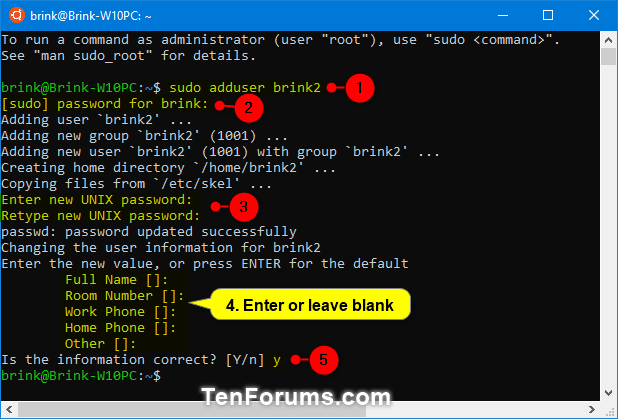
- After reboot, the Linux setup will launch. Create a username and password for your Linux account.
Windows 10 Help Forums
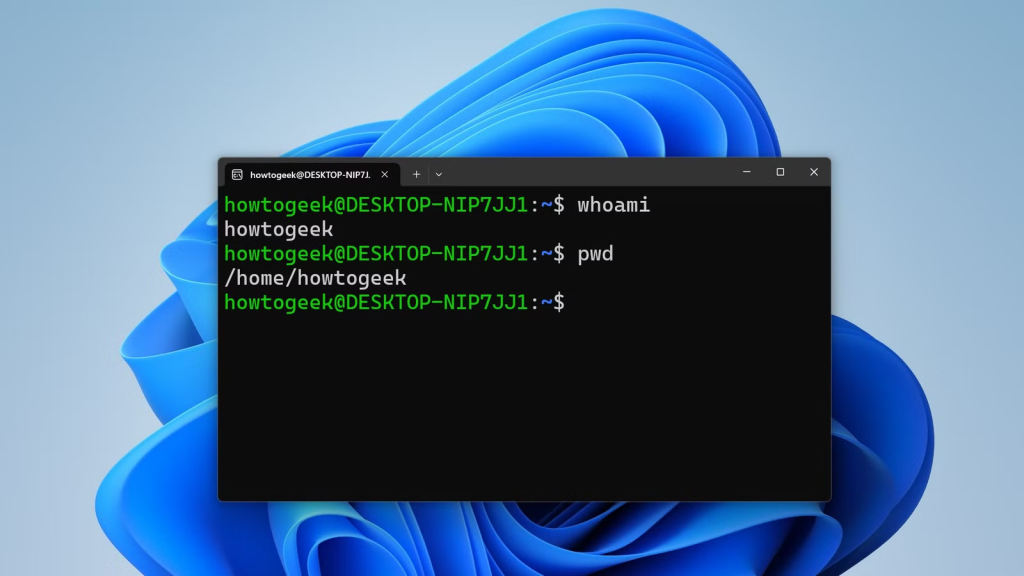
Once installed, launch your distro from the Start menu (e.g., search for “Ubuntu”). You’ll have a full bash shell, where you can run commands like ls, apt update, or even access Windows files via /mnt/c/.
Installing GUI Apps in WSL
WSL supports graphical user interface (GUI) apps out of the box on Windows 11, thanks to WSLg (WSL graphics). This means you can run Linux desktop apps like GIMP or Firefox alongside Windows programs.
- Launch your distro (e.g., Ubuntu) from the Start menu.
- Update packages:
sudo apt update. - Install an app:
sudo apt install APP-NAME. For example,sudo apt install gimpfor the image editor. - Run the app by typing its name (e.g.,
gimp) in the terminal. It will appear as a native window.

Installed apps integrate into the Windows Start menu for easy access. If you encounter display issues, ensure your graphics drivers are up to date and restart WSL with wsl --shutdown.
Advanced WSL Tips
- Multiple Distros: Install as many as you want—run
wsl --listto manage them. - File Sharing: Linux files are in
\\wsl$\DistroName\, accessible from Windows Explorer. - Systemd Support: Enable it for services like Docker: Edit
/etc/wsl.confand add[boot] systemd=true. - Performance Tuning: Allocate more resources via
.wslconfigin your user folder (e.g., set memory=8GB). - Uninstalling: Use
wsl --unregister DISTRO-NAMEor remove via Settings > Apps.
WSL is resource-efficient but lacks a full desktop environment. For that, turn to virtual machines.
How to Install Ubuntu Desktop Interface (ie Ubuntu 24)
Here’s the exact 5-minute recipe that works on WSL2 + Ubuntu 24.04 (tested today on Windows 11 24H2).
1. Update Ubuntu first
sudo apt update && sudo apt upgrade -y2. Install the lightest Ubuntu desktop (XFCE)
sudo apt install -y xfce4 xfce4-goodies→ ~750 MB, boots in 3 seconds.
3. Install an RDP server (the magic that makes it appear on Windows)
sudo apt install -y xrdp
sudo cp /etc/xrdp/xrdp.ini /etc/xrdp/xrdp.ini.bak
sudo sed -i 's/4096/3389/' /etc/xrdp/xrdp.ini # use standard RDP portCode language: PHP (php)4. Tell XRDP to start XFCE
echo "startxfce4" > ~/.xsession
sudo chmod +x ~/.xsessionCode language: PHP (php)5. Start the RDP server
sudo systemctl enable xrdp
sudo service xrdp start6. Launch the desktop from Windows
- Press Win + R → type
mstsc- Enter:
localhost:3389Code language: CSS (css)- Username: your Ubuntu username
Password: your Ubuntu password
→ XFCE desktop appears instantly.
One-click script (copy-paste)
sudo apt update && sudo apt upgrade -y &&
sudo apt install -y xfce4 xfce4-goodies xrdp &&
sudo systemctl enable xrdp &&
echo "startxfce4" > ~/.xsession &&
sudo sed -i 's/4096/3389/' /etc/xrdp/xrdp.ini &&
sudo service xrdp start &&
echo "Done! On Windows press Win+R → mstsc → localhost:3389"Code language: PHP (php)Optional: make it start automatically
Add this to ~/.bashrc so the desktop is ready every time you open the terminal:
if [ -z "$DISPLAY" ] && [ "$(tty)" = "/dev/tty1" ]; then
    sudo service xrdp start
fiCode language: CSS (css)Bonus: GNOME (if you want the full Ubuntu look)
Replace step 2 with:
sudo apt install -y ubuntu-desktop-minimal(it’s 2 GB but looks exactly like native Ubuntu).
That’s it — you now have a full Ubuntu 24.04 desktop running side-by-side with Windows.
Drag files, copy-paste, share clipboard — everything just works.
Method 2: Running Linux with Hyper-V Virtual Machines
Hyper-V is Windows’ built-in hypervisor for creating full virtual machines (VMs). It’s ideal for running Linux with a graphical desktop, testing OS configurations, or isolating environments. Unlike WSL, it provides complete OS isolation but requires more hardware resources.
Enabling Hyper-V on Windows 11
Hyper-V is available on Windows 11 Pro, Enterprise, or Education editions. If you’re on Home, consider upgrading or using alternatives like VirtualBox.
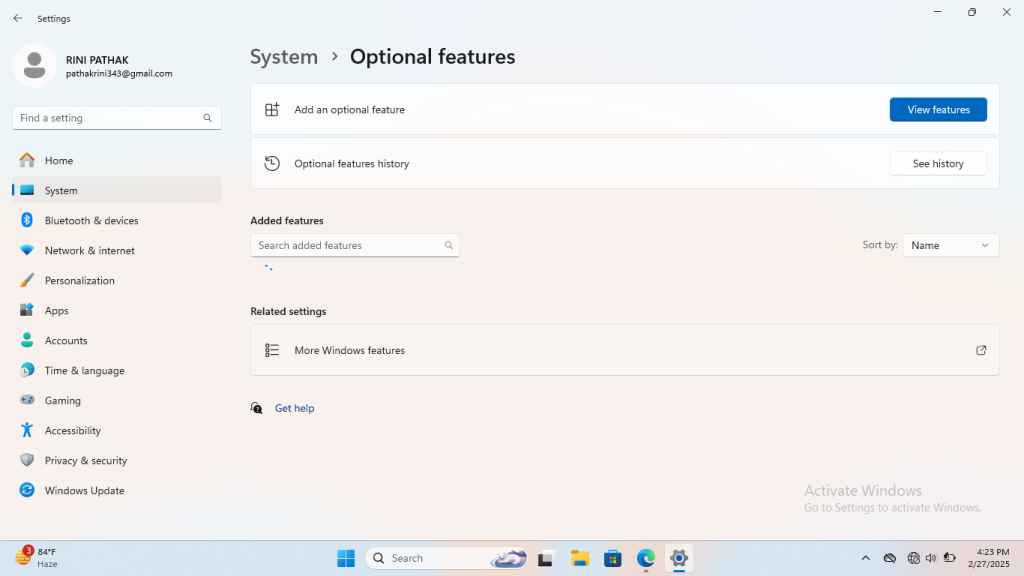
- Open Settings (Win + I).
- Navigate to Apps > Optional features.
- Under “Related settings,” click “More Windows features.”
- Check “Hyper-V” and its sub-components (Hyper-V Management Tools and Platform).
- Click OK and restart your PC.
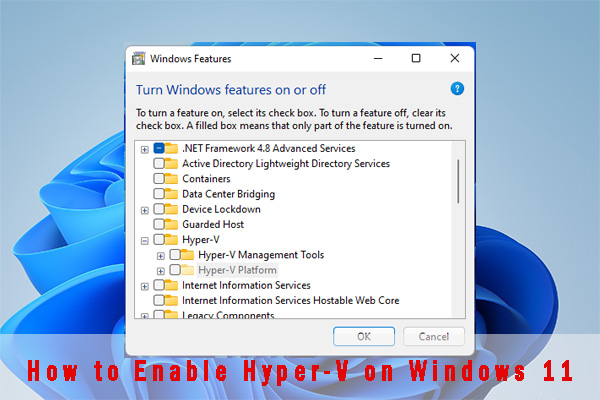
Hyper-V Manager will now appear in the Start menu.
Creating a Linux VM Quickly (Using Quick Create)
For a fast setup with Ubuntu:
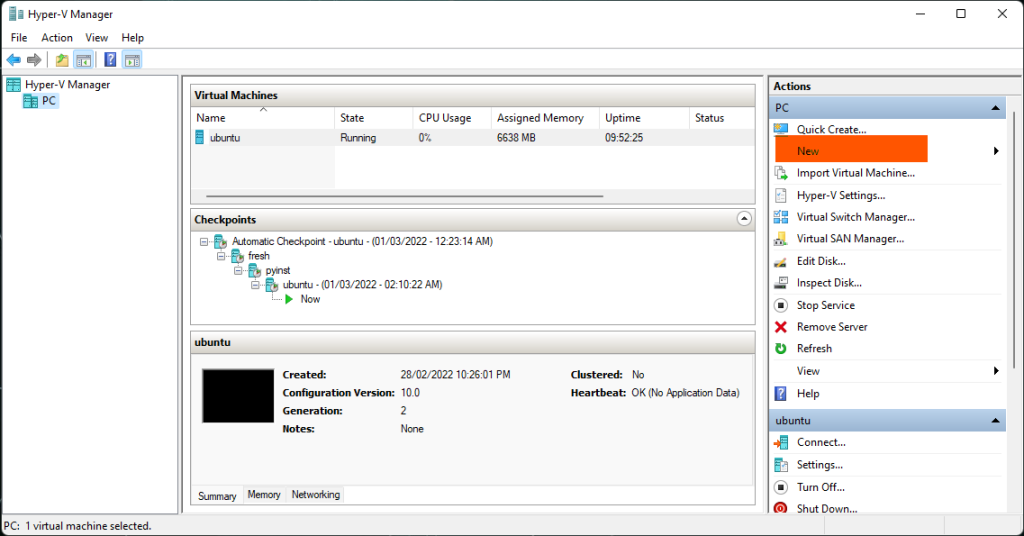
- Open Hyper-V Manager.
- From the Actions menu, select Quick Create.
- Choose an Ubuntu version from the gallery (e.g., Ubuntu 24.04 LTS).
- Click “Create Virtual Machine.” It downloads the ISO and sets up basics.
- Once created, select the VM and click Connect.
- Start the VM and follow the installer:
- Select your language.
- Choose keyboard layout and location.
- Create a user account.
You’ll now have a full Ubuntu desktop running in a window.
Creating a Linux VM Manually
For custom distros (e.g., Fedora or Arch Linux), use an ISO file:
- Download the ISO from the distro’s official site (e.g., fedora.org).
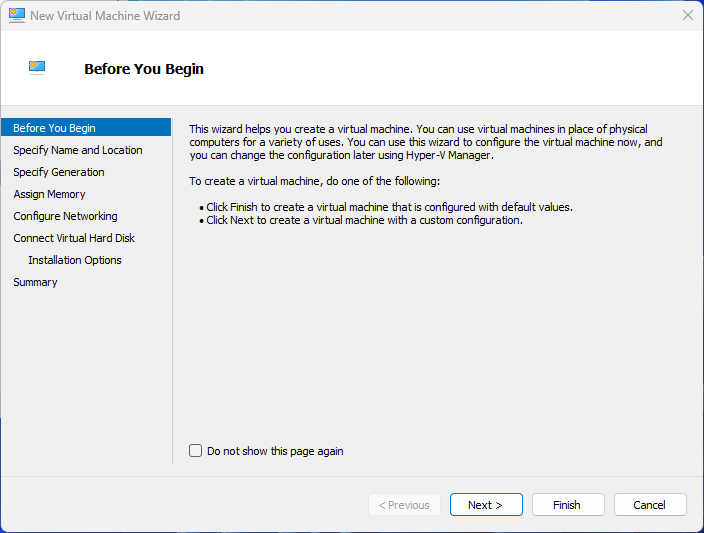
- In Hyper-V Manager, go to Actions > New > Virtual Machine.
- Name the VM and choose a storage location.
- Select Generation 2 for modern features (UEFI, better performance).
- Assign memory (e.g., 4GB, enable Dynamic Memory).
- Configure networking: Use “Default Switch” for internet access.
- Create a virtual hard disk (e.g., 64GB).
- Select “Install from bootable image” and browse to your ISO.
- Finish and start the VM.
- Connect to the VM session.
- Proceed with the distro’s installer prompts.
Optimizing Hyper-V VMs
- Enhanced Session Mode: Enable for clipboard sharing and resolution scaling (VM Settings > Integration Services).
- Resource Allocation: Adjust CPU cores and storage in VM Settings.
- Snapshots: Use checkpoints for easy rollbacks.
- Networking: Create external switches for bridged connections.
- GPU Passthrough: For graphics-intensive tasks, enable RemoteFX if supported.
Hyper-V supports multiple VMs, limited only by your hardware (recommend 8GB+ RAM, SSD).
Comparing WSL and Hyper-V
| Feature | WSL | Hyper-V |
|---|---|---|
| Resource Usage | Low (shares kernel) | Higher (full VM overhead) |
| GUI Support | Basic (apps only) | Full desktop |
| Isolation | Moderate | High |
| Setup Time | Minutes | 10-30 minutes |
| Best For | Dev tools, CLI | Testing full OS, servers |
Troubleshooting Common Issues
- WSL Not Installing: Ensure virtualization is enabled; run
bcdedit /set hypervisorlaunchtype autoand reboot. - Hyper-V Conflicts: Disable if using VirtualBox/VMware (they can’t coexist).
- Slow Performance: Update Windows, use SSD, or switch to WSL2.
- Network Problems: Reset WSL with
wsl --shutdownor recreate Hyper-V switches. - Error Codes: Search Microsoft Docs for specifics (e.g., 0x80070002 means missing files).
Alternatives to Consider
- VirtualBox or VMware: Free third-party options if Hyper-V isn’t available.
- Dual Boot: Install Linux on a separate partition for native performance, but it requires repartitioning (use tools like Rufus for bootable USB).
- Cloud VMs: Services like AWS Lightsail for remote Linux access.
- Containers: Docker on WSL for app-level isolation without full OS.
Final Thoughts
Running Linux alongside Windows 11 opens up a world of possibilities without compromising your primary setup. WSL is your go-to for quick, integrated access, while Hyper-V provides the full experience for more complex needs. Experiment with different distros to find what suits you—Ubuntu for beginners, Kali for security pros, or Fedora for cutting-edge features. Always back up data before tinkering, and stay updated via Microsoft’s WSL and Hyper-V documentation. If you’re a power user, explore scripting WSL setups or automating VM provisioning with PowerShell.
For more Windows 11 tips, check out guides on optimizing performance or integrating AI tools. Happy computing!