In the world of Linux and Unix-like systems, the terminal is your gateway to powerful computing. Whether you’re a complete beginner dipping your toes into command-line interfaces or an advanced user looking to refine your skills, understanding essential terminal commands is crucial for efficient navigation, file management, system monitoring, and basic operations. This in-depth article covers a wide range of Linux terminal commands, from basic Bash commands to advanced tricks, complete with examples, explanations, and practical tips. We’ll explore how these commands can streamline your workflow, boost productivity, and help you troubleshoot like a pro.
If you’re searching for “essential Linux commands for beginners,” “advanced Bash scripting tips,” or “terminal commands cheat sheet,” you’ve come to the right place. By the end of this guide, you’ll have a solid foundation in using the command line effectively on systems like Ubuntu, Fedora, or macOS Terminal.
Why Learn Terminal Commands? The Power of the CLI
The Command Line Interface (CLI) might seem intimidating at first, but it’s far more efficient than graphical user interfaces for many tasks. Terminal commands allow you to automate repetitive actions, manage servers remotely, and access system resources directly. According to various Linux tutorials, mastering these can save hours of work weekly. For instance, developers and system administrators rely on them for everything from deploying applications to monitoring performance.
Beginners often start with simple navigation, while advanced users leverage scripting and piping for complex automation. Let’s dive into the categories, starting with the basics and progressing to pro-level techniques. Check out our $5/mo Linux VPS hosting servers
Navigation Commands: Getting Around the File System
Navigation is the foundation of terminal proficiency. These commands help you move through directories, view your location, and list contents—essential for any Linux user.
Beginner Navigation Commands
Start with pwd (print working directory), which shows your current path. It’s perfect for orienting yourself in the file system.
Example:
text
$ pwd
/home/user/documents
This command is straightforward and helps prevent mistakes when working in nested folders.

How To Use pwd Command In Linux / UNIX {with examples} – nixCraft
Next, ls lists files and directories in the current location. Use flags like -l for detailed views (permissions, size, modification date) or -a to show hidden files.
Example:
text
$ ls -la
drwxr-xr-x  2 user user 4096 Jan 13 18:00 .
drwxr-xr-x  5 user user 4096 Jan 10 12:00 ..
-rw-r--r--  1 user user 1024 Jan 13 17:00 file.txt
This is one of the most used Linux commands for beginners, as highlighted in comprehensive guides.
command line – How do I select a field/column from the output of …
cd (change directory) lets you move around. Use cd .. to go up one level, cd ~ for home, or cd /path/to/dir for absolute paths.
Example:
text
$ cd /etc
$ pwd
/etc
For macOS or Linux navigation tips, this command is indispensable.

How to navigate files and folders in Terminal | Macworld
Novice Tips for Navigation
Combine ls with options like -h for human-readable sizes or –color=auto for color-coded output. For a tree view of directories, install and use tree:
text
$ tree /home/user
/home/user
├── documents
│   └── file.txt
└── pictures
This visual hierarchy aids in understanding file structures.
Advanced Navigation Tricks
Use tab completion to auto-fill paths—type the first few letters and hit Tab. For jumping to previous directories, cd – switches back. Advanced users can alias common paths in ~/.bashrc:
text
alias docs='cd ~/documents'Code language: JavaScript (javascript)Scripting pros might use pushd and popd for directory stacks, allowing quick switches between multiple locations.
File Management Commands: Creating, Moving, and Deleting
File management commands are vital for organizing data. From creating directories to searching files, these tools handle everyday tasks efficiently.
Beginner File Management Commands
mkdir creates directories. Use -p to create parent directories if they don’t exist.
Example:
text
$ mkdir -p projects/new/folderCode language: JavaScript (javascript)This is a core command for structuring your workspace.
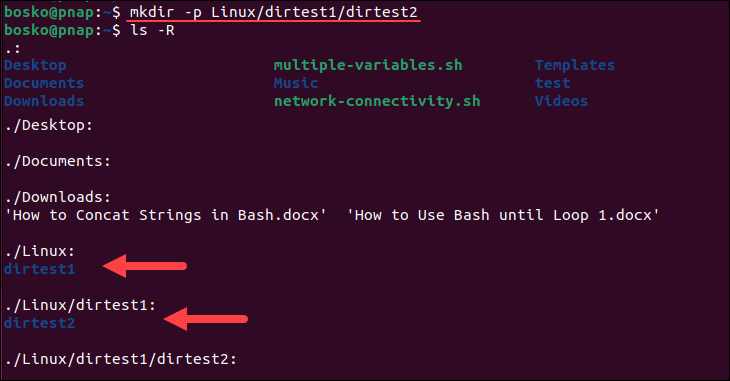
How to Create a Directory in Linux via mkdir Command
touch creates empty files or updates timestamps.
Example:
text
$ touch newfile.txtcp copies files or directories (-r for recursive).
Example:
text
$ cp file.txt backup/mv moves or renames files.
Example:
text
$ mv oldname.txt newname.txtrm deletes files (-r for directories, -f to force).
Example:
text
$ rm -rf unwanted_dir/Be cautious with rm—it’s irreversible! These are among the top essential Linux commands.
File Management in the Terminal: cp, mv, rm
Novice File Management Techniques
Use rmdir for empty directories. For viewing file contents, cat concatenates and displays:
text
$ cat file.txt
Hello, world!
less or more for paging through large files. To edit, use nano (simple) or vim (advanced).
Searching? find locates files by name or type.
Example:
text
$ find /home -name "*.txt"Code language: JavaScript (javascript)grep searches text within files.
Example:
text
$ grep "error" logfile.txtCode language: JavaScript (javascript)This is great for debugging logs.

How to Use Grep to Find Text in Files: Easy Beginner’s Guide
Advanced File Management Tricks
Leverage wildcards: rm *.tmp deletes all temp files. For bulk operations, use xargs:
text
$ find . -name "*.bak" | xargs rmCode language: JavaScript (javascript)Advanced Bash tricks include using sed for in-place edits:
text
$ sed -i 's/old/new/g' file.txtCode language: JavaScript (javascript)Or awk for data extraction:
text
$ awk '{print $1}' data.csvCode language: JavaScript (javascript)These are highlighted in advanced scripting resources.
System Monitoring Commands: Keeping Tabs on Performance
Monitoring ensures your system runs smoothly. These commands reveal CPU, memory, disk usage, and processes.
Beginner System Monitoring Commands
top displays real-time processes, CPU, and memory usage. Press ‘q’ to quit.
Example:
text
$ topIt’s interactive and essential for spotting resource hogs.

Gotop is a Cool CLI System Monitor Tool for Linux – OMG! Ubuntu
ps lists running processes.
Example:
text
$ ps auxkill terminates processes by PID.
Example:
text
$ kill 1234For disk space, df -h shows usage in human-readable format.
Example:
text
$ df -h
Filesystem      Size  Used Avail Use% Mounted on
/dev/sda1       100G   50G   50G  50% /Code language: PHP (php)
du -sh * summarizes directory sizes.
These are key for basic system checks.

Disk Space Command in Linux – Scaler Topics
Novice Monitoring Tools
Install htop for an enhanced top with mouse support and tree views.
Example:
text
$ htopMonitor memory with free -h. For network, ifconfig or ip addr shows interfaces.
Advanced Monitoring Tricks
Use watch to run commands periodically:
text
$ watch -n 1 free -hFor logging, redirect output: top -b -n 1 > top.log. Advanced users script monitors with cron jobs or use sar for historical data.
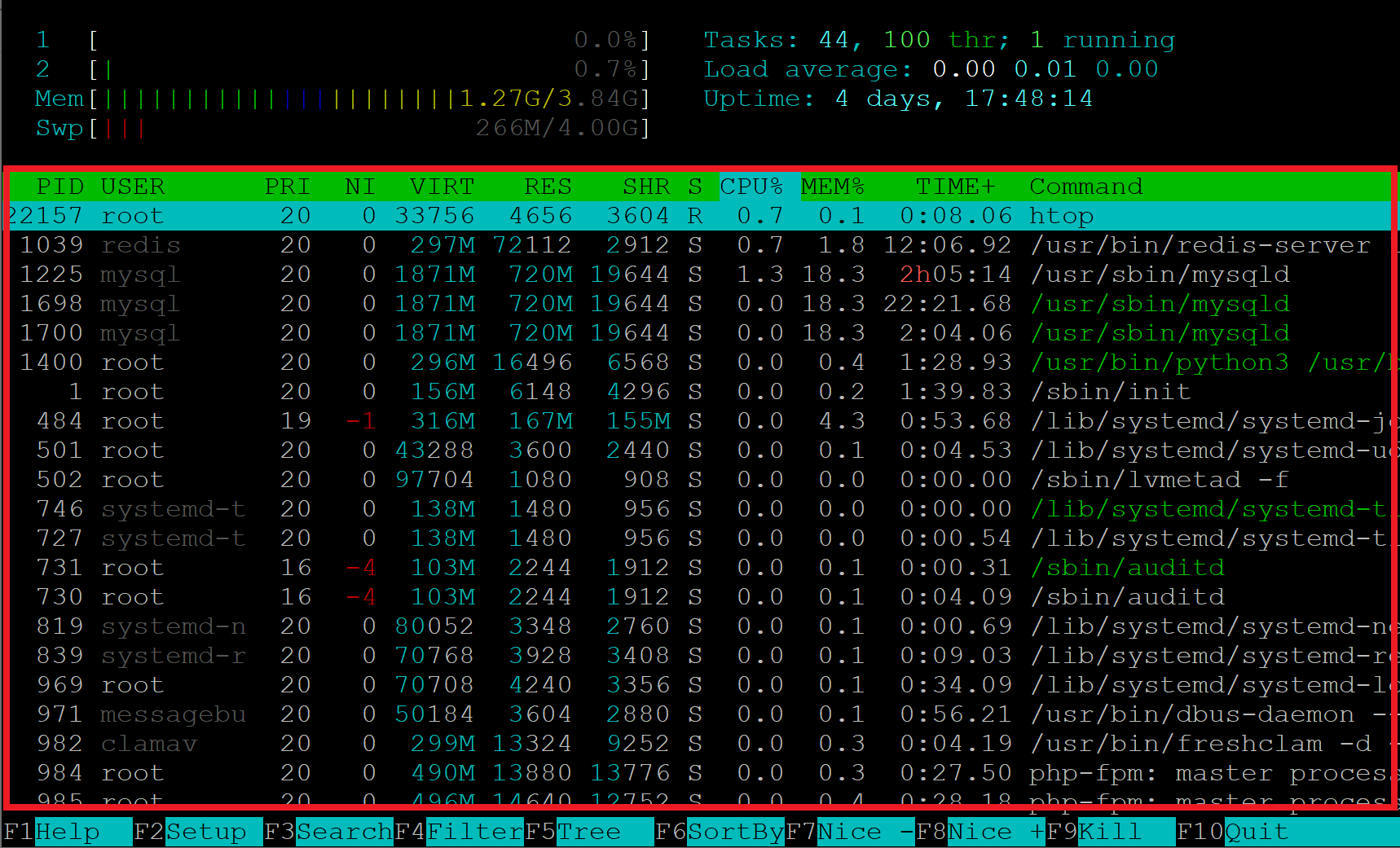
How to Use the htop Command to Monitor System Processes and …
In high-performance scripts, parallelize with xargs -P.
Basic Operations: Everyday Essentials and Automation
Basic operations tie everything together, including output, permissions, and package management.
Beginner Basic Commands
echo prints text.
Example:
text
$ echo "Hello, Terminal!"
Hello, Terminal!Code language: PHP (php)
man shows manuals.
Example:
text
$ man lssudo runs as superuser.
Example:
text
$ sudo apt update(For Debian-based systems; use yum or dnf on others.)
Novice Operations
Change permissions with chmod:
text
$ chmod +x script.shOwnership: chown user:group file.
Piping () and redirection (>, >>, <):
Example:
text
$ ls | grep ".txt" > files.txtCode language: JavaScript (javascript)This filters and saves output.

Introduction to Bash Scripting: Pipes and Redirections
Advanced Operations and Tricks
Aliases in ~/.bashrc:
text
alias ll='ls -la'Code language: JavaScript (javascript)Functions for reusable code:
text
function backup() { cp "$1" "$1.bak"; }Code language: JavaScript (javascript)Arrays for lists:
text
fruits=(apple banana); echo ${fruits[1]}Code language: PHP (php)Error handling with set -euo pipefail. For parallelism, use & and wait.
Explore regular expressions with grep -E or process substitution <(command).
Pro Tips and Common Pitfalls
- Always use man or –help for details.
- Backup before destructive commands like rm.
- Practice in a virtual machine to avoid risks.
- For learning, check interactive resources or guides.
- SEO tip: Search for “Bash commands cheat sheet PDF” for printable references.
Conclusion: Level Up Your Terminal Skills
Mastering these essential terminal commands—from navigation like cd and ls to advanced tricks like piping and scripting—transforms you into a confident Linux user. Start with beginners’ lists and progress to advanced Bash techniques for automation. Practice regularly, and soon the terminal will feel like second nature.