
Secure Router Stock Illustrations – 3,201 Secure Router Stock Illustrations, Vectors & Clipart – Dreamstime
In 2026, your home WiFi router is the gateway to everything—banking, streaming, smart home devices, and remote work. But most routers ship with outdated firmware, weak defaults, and zero ongoing security updates, making them prime targets for hackers. The good news? You can fully secure your home WiFi router and entire internet connection using only free apps and open source software—no paid subscriptions required.
This step-by-step tutorial covers everything from basic hardening to advanced open source upgrades like OpenWRT, Pi-hole/AdGuard Home, and WireGuard. Expect full details, screenshots, comparisons, official links, and pro tips optimized for real-world use. By the end, your network will be locked down against intruders, malware, trackers, and ISP snooping.
Why Securing Your Home WiFi Router Matters More Than Ever
Home networks face constant threats: rogue devices joining via weak WiFi, firmware exploits turning routers into botnets, DNS hijacking, and unencrypted traffic leaking data.
Common risks include:
- Default admin passwords (often “admin/admin”)
- Outdated firmware with known vulnerabilities
- Weak encryption (WPA2 or worse)
- No guest network isolation
- ISP-provided DNS logging your activity
Securing it with free tools blocks 99% of these threats without spending a dime.
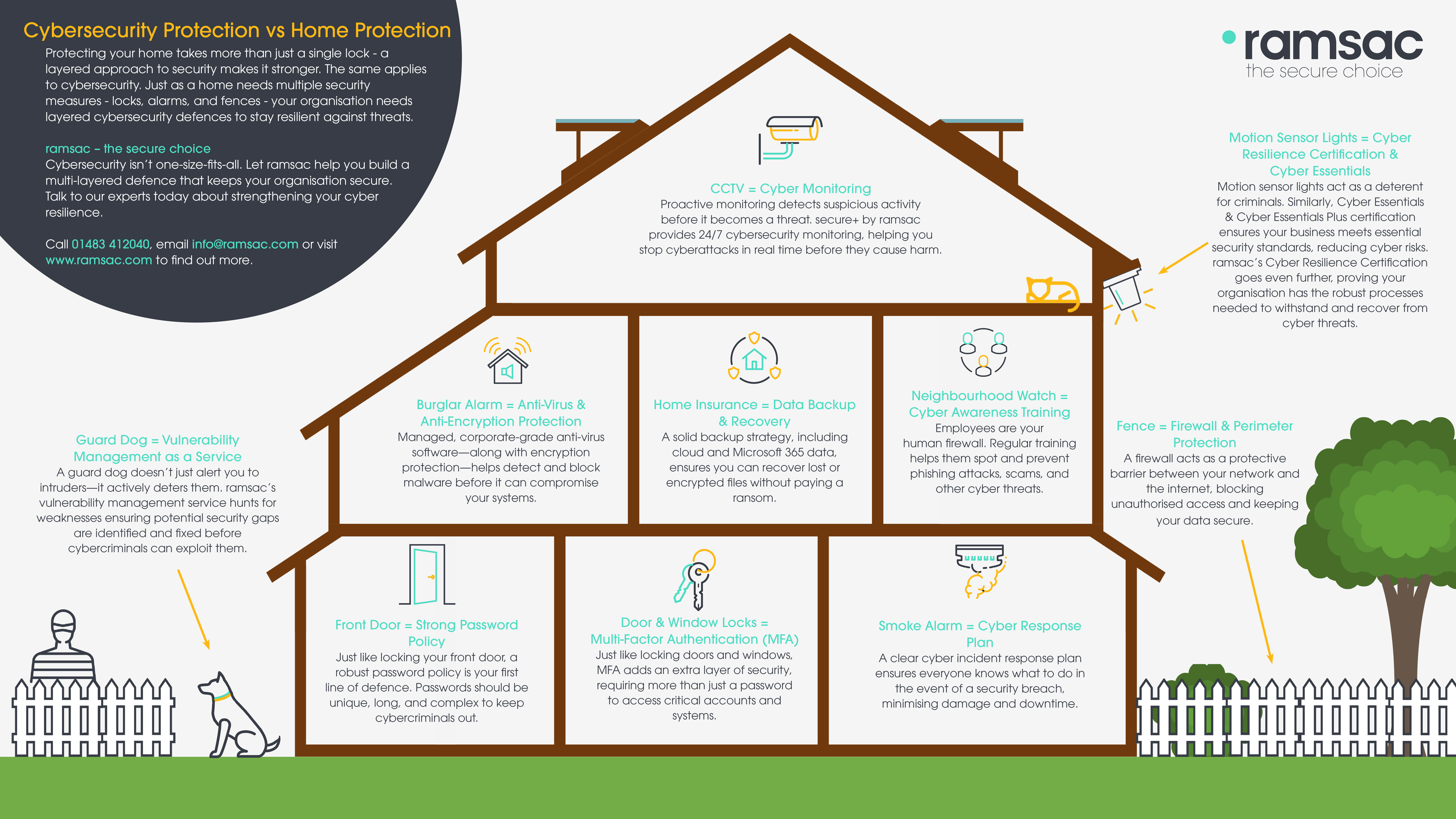
Infographic: Cybersecurity protection vs home protection – ramsac Ltd
Step 1: Quick Security Audit with Free Apps (5 Minutes)
Before touching settings, scan your network to see what’s already connected.
Recommended free/open source apps:
- WiFi Analyzer (Open Source) – Android app for channel analysis and signal strength. Perfect for spotting interference or hidden networks.
- Fing (Free version) – iOS/Android/desktop scanner that lists every device, shows MAC addresses, and alerts on new connections.
- Nmap (Command-line, fully open source) – Run nmap -sn 192.168.1.0/24 on any computer for a detailed host scan.
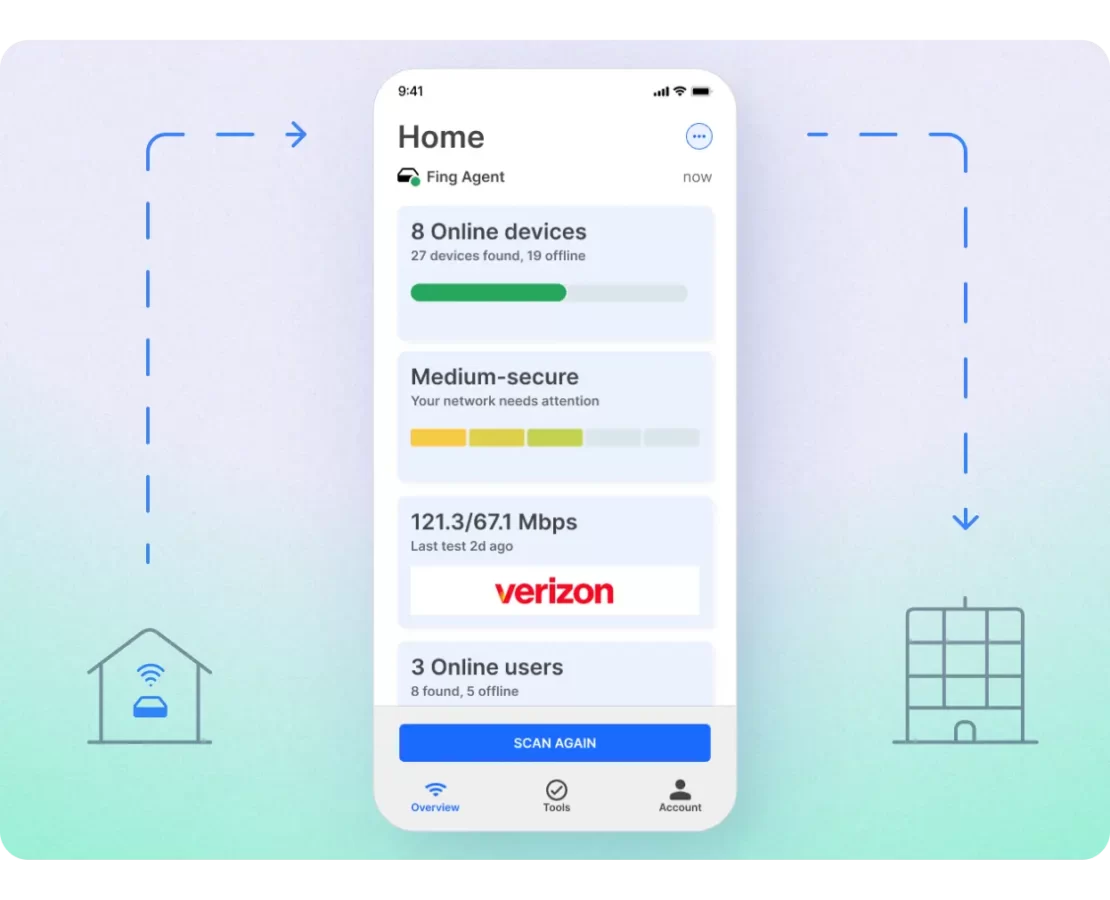
Fing Mobile | On the Go Network Scanning
How to use Fing:
- Download from App Store or Google Play (free tier is sufficient).
- Connect to your WiFi and run a scan.
- Identify unknown devices—block or investigate immediately.
Pro tip: Use WiFi Analyzer to switch your router to the least crowded channel (e.g., 1, 6, or 11 on 2.4 GHz).
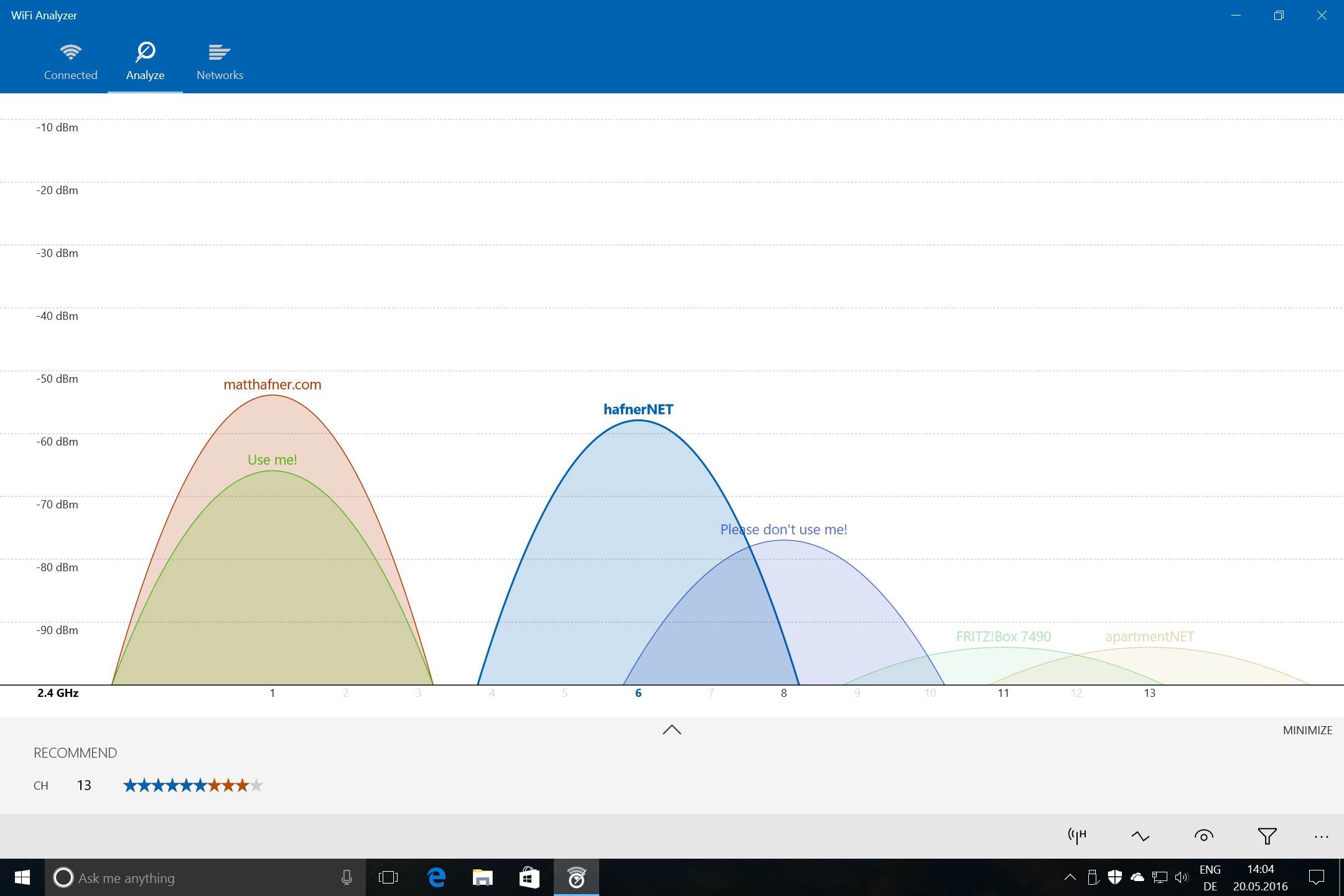
WiFi Analyzer – Free download and install on Windows | Microsoft Store
Step 2: Basic Router Hardening (No Firmware Flash Needed)
Access your router’s admin panel (usually 192.168.1.1 or 192.168.0.1). Log in with current credentials.
Essential free steps (FTC & CNET recommended):
- Change default admin username/password – Use a strong, unique 16+ character password. Never reuse it.
- Enable WPA3 encryption (or WPA2 if WPA3 unavailable). Avoid WEP/WPA entirely.
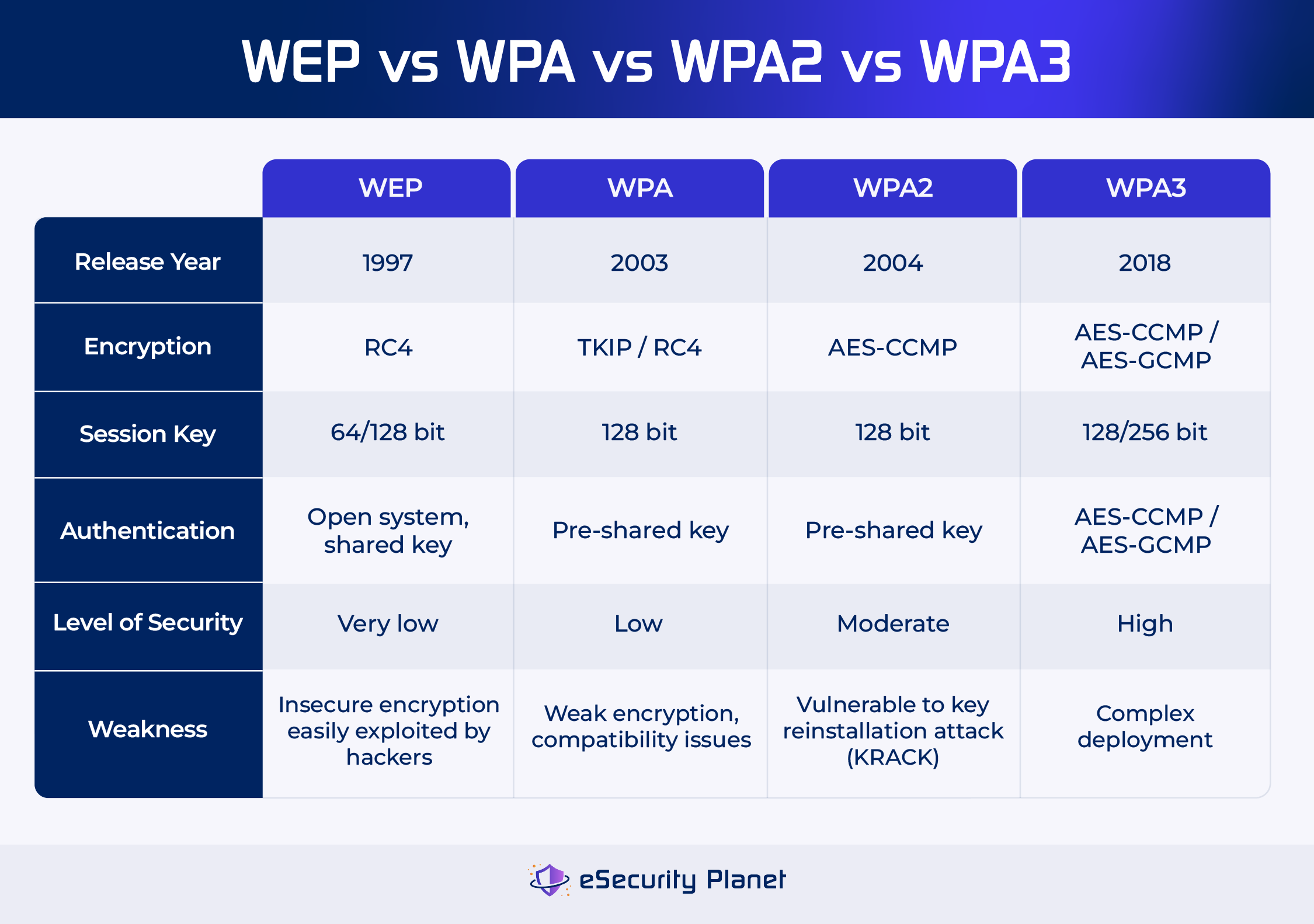
Wireless Network Security: WEP, WPA, WPA2 & WPA3 Explained
| Encryption | Security Level | Weaknesses | Recommendation |
|---|---|---|---|
| WEP | Very Low | Easily cracked | Never use |
| WPA | Low | Weak keys | Upgrade immediately |
| WPA2 | Moderate | KRACK vulnerability | Acceptable fallback |
| WPA3 | High | Strongest | Use this |
- Disable WPS, UPnP, and remote management – These are common backdoors.
- Create a separate Guest Network – Isolate visitors and IoT devices.
- Update firmware – Check your manufacturer’s site for the latest version (even if support is ending).
- Enable the built-in firewall and turn on MAC filtering if desired.
These changes alone dramatically reduce risk.
Step 3: Level Up with Open Source Firmware – Install OpenWRT
Stock firmware stops updates after 2–3 years. Open source alternatives get community security patches for years.
Top recommendation: OpenWRT (fully open source, actively maintained in 2026).
Why OpenWRT over stock or others?
- Regular security updates
- Hundreds of free packages (ad blockers, VPN servers, etc.)
- Better customization than proprietary firmware
Comparison Table: Stock vs OpenWRT vs DD-WRT
| Feature | Stock Firmware | OpenWRT | DD-WRT |
|---|---|---|---|
| Security Updates | Often ends after 2 years | Ongoing community patches | Good but less frequent |
| Customization | Low | Extremely high (LuCI + packages) | High but clunkier UI |
| Device Support | Router-specific | 1,000+ devices (check TOH) | Strong on older routers |
| Ease of Use | Beginner-friendly | Moderate learning curve | Dated interface |
| Best For | Casual users | Security-focused homes | Budget hardware hacks |

Demonstration – new Interface web LuCI OpenWrt
Installation steps (full details):
- Go to openwrt.org/toh and confirm your router model is supported.
- Download the correct factory image.
- Log into your current router admin panel → Upgrade firmware → Upload the OpenWRT image.
- After flash, access http://192.168.1.1 (default OpenWRT IP). Set a strong root password.
- Install LuCI (web GUI) if not included: opkg update && opkg install luci.
- Secure access: Enable HTTPS, change SSH port, disable root login over WAN.
Backup your original firmware first—bricking is rare but possible.
Alternative: DD-WRT for routers OpenWRT doesn’t support well.
Step 4: Network-Wide Ad, Tracker & Malware Blocking with Pi-hole or AdGuard Home
Block threats at the DNS level for every device.
Best free open source options:
- Pi-hole – Lightweight, classic choice. Runs on Raspberry Pi or any Linux device.
- AdGuard Home – More modern UI, built-in DoH/DoT, parental controls.
Pi-hole vs AdGuard Home Quick Comparison
| Feature | Pi-hole | AdGuard Home |
|---|---|---|
| Ease of Setup | Very simple | Slightly more features |
| UI/Stats | Excellent dashboards | Cleaner, more modern |
| DoH/DoT Support | Needs extra (Unbound) | Built-in |
| Resource Usage | Extremely low | Very low |
| Best For | Simplicity & privacy | Advanced filtering |
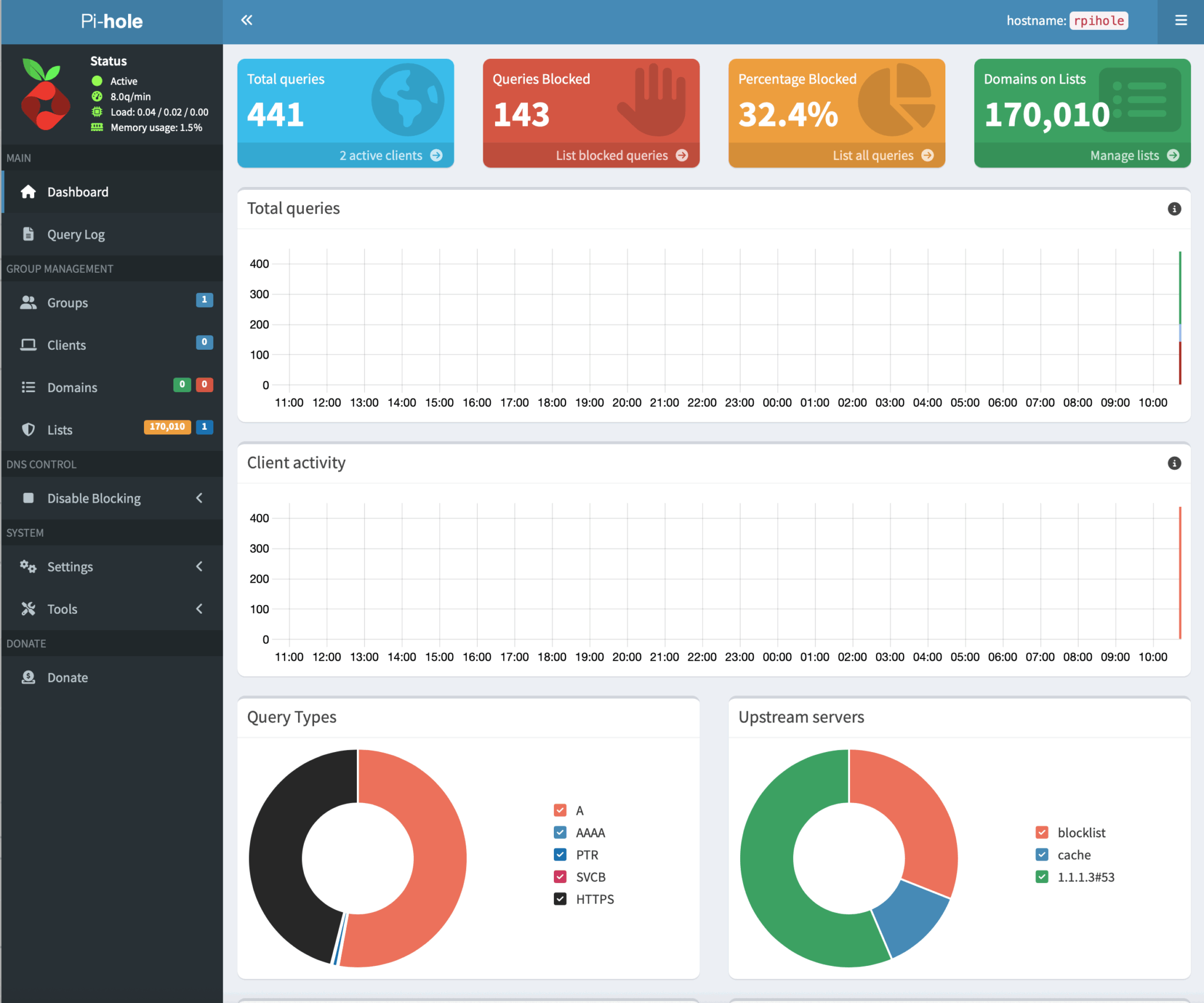
Build a Pi-Hole Network-Wide Ad Blocker with Raspberry Pi
Pi-hole install (5–10 minutes on Raspberry Pi):
- Flash Raspberry Pi OS Lite.
- Run: curl -sSL https://install.pi-hole.net | bash
- Set router DHCP to use Pi-hole IP as DNS (e.g., 192.168.1.10).
- Optional: Pair with Unbound for full recursive DNS privacy.
AdGuard Home alternative: Download from adguard.com and run as a single binary.
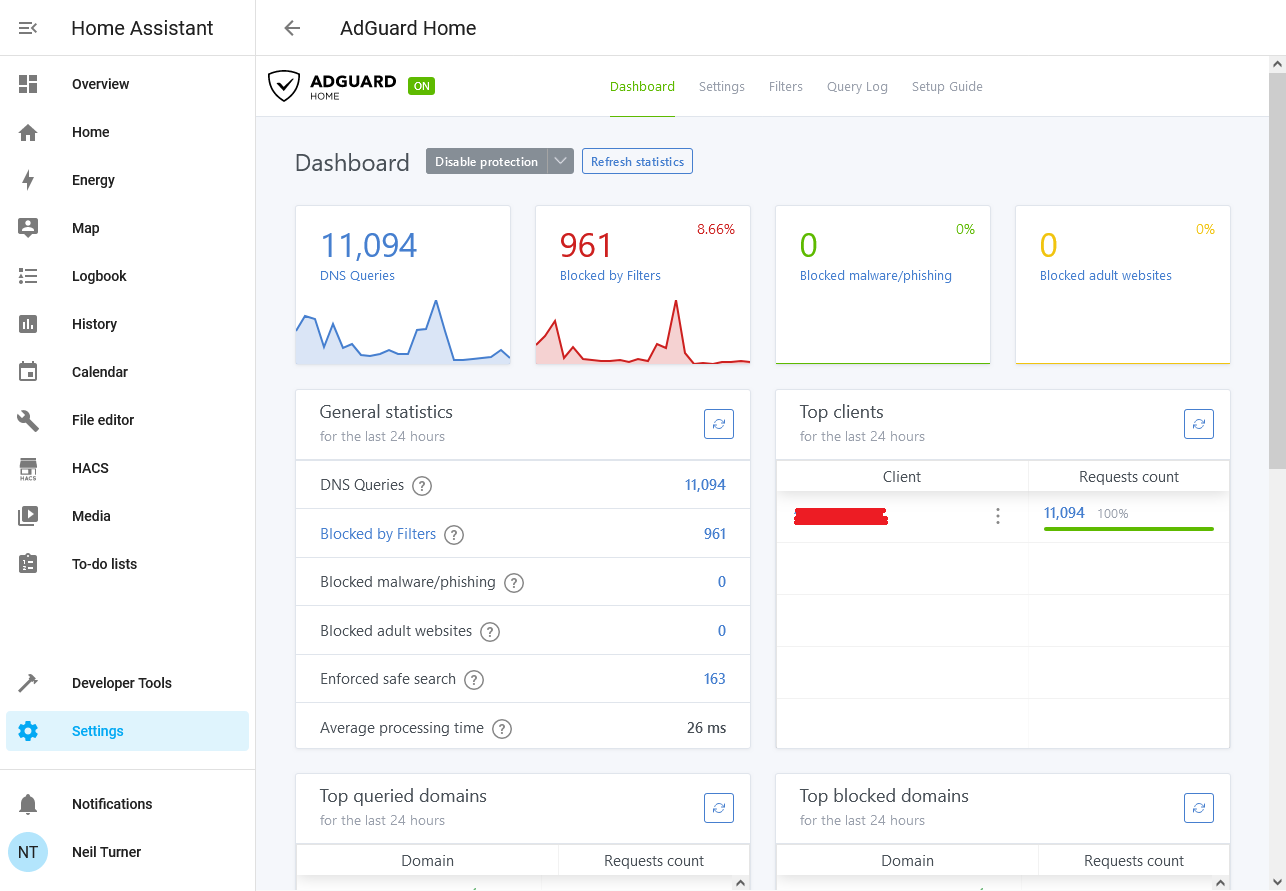
AdGuard Home – Neil Turner’s Blog
Step 5: Encrypt Your Internet Traffic (Free DNS + VPN)
Secure DNS (zero cost):
- Quad9 (9.9.9.9) – Blocks malware/phishing automatically.
- Cloudflare 1.1.1.1 (or 1.1.1.2 for malware blocking) – Fastest, privacy-focused.
Set these in your router (or OpenWRT) under DNS settings. Enable DoH/DoT where possible.
Free VPN for whole-home protection:
- Install WireGuard (open source, lightning-fast) directly on OpenWRT or a Raspberry Pi.
- Official WireGuard site: wireguard.com
- For mobile/out-of-home: Use open source clients with free tiers like ProtonVPN (apps are open source).
Configure WireGuard on OpenWRT → all devices get encrypted traffic automatically.
Step 6: Ongoing Monitoring & Maintenance with Open Source Tools
- Pi.Alert or NetAlertX – Free Raspberry Pi-based network watchdog that emails/SMS alerts on unknown devices.
- Wireshark – Open source packet analyzer for deep dives.
- Schedule monthly firmware/package updates in OpenWRT.
- Use strong unique passwords (pair with free Bitwarden).
Advanced Tips & Common Mistakes to Avoid
- Never expose admin ports to the internet.
- Segment IoT devices on a separate VLAN (easy in OpenWRT).
- Test your setup with free tools like ShieldsUP! or nmap from outside.
- Common mistake: Forgetting to update after flashing—OpenWRT makes it automatic via opkg.
Final Thoughts: Your Secure Home Network is Ready
You’ve now transformed your router into a fortress using 100% free and open source software. Expect faster speeds (thanks to better DNS), zero ads/trackers, and peace of mind knowing hackers are locked out.
Quick-start checklist:
- Audit with Fing/WiFi Analyzer
- Harden basics + WPA3
- Flash OpenWRT (recommended)
- Deploy Pi-hole/AdGuard Home
- Switch to Quad9/Cloudflare DNS
- Add WireGuard VPN
Share this guide with friends—secure WiFi is a team effort. Questions? Drop them in the comments.
Official resources:
- OpenWRT: https://openwrt.org/
- Pi-hole: https://pi-hole.net/
- AdGuard Home: https://adguard.com/en/adguard-home/overview.html
- Quad9: https://quad9.net/
- WireGuard: https://www.wireguard.com/
- Fing: https://www.fing.com/app/
Stay safe online in 2026 and beyond! 🚀